

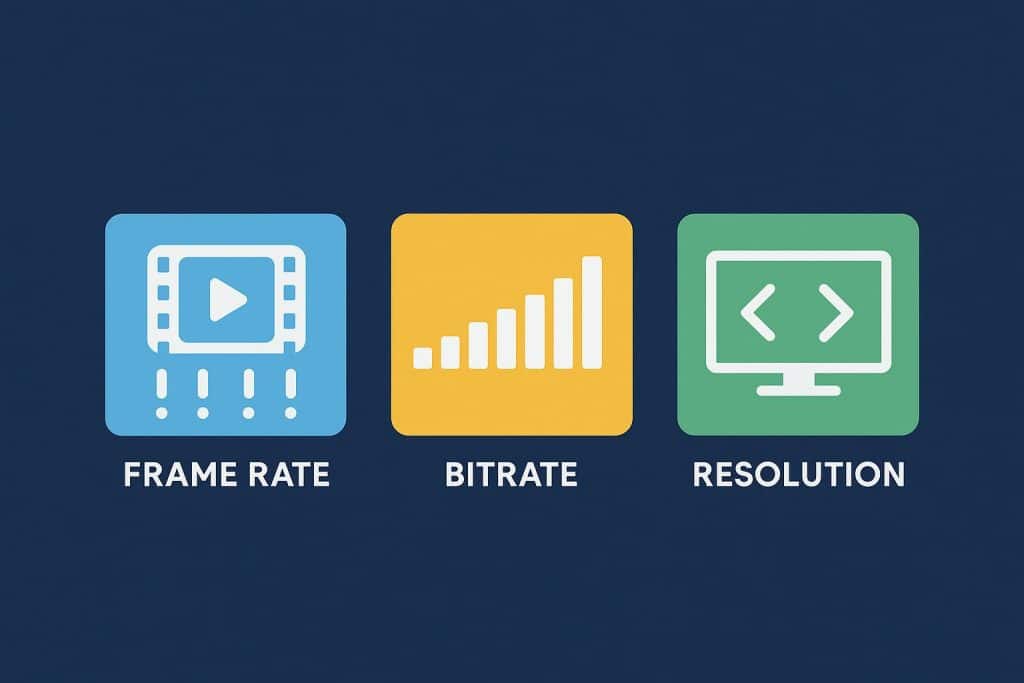
Think of video as a series of digital photos flashing by in quick succession. Each frame captures a single moment, and the number of frames per second creates the motion you see on screen.
The clarity, color, and smoothness of that motion depend on several camera and recording settings—resolution, color depth, and frame rate. Every choice changes how much data the video uses and how it looks to people watching.
Higher settings can boost detail, but they also demand more storage and processing power. If you understand how these settings work together, you’ll have an easier time balancing quality with performance for your own projects.
Key Takeaways
- Video stitches lots of images together to create smooth motion.
- Image size, color depth, and frame rate all shape what you see.
- Smart choices help you manage data use and system performance.
Understanding Video as Sequential Images
How Video Relates to Digital Photos
He says that the video works as a bunch of still images shown one after another. Each frame is like a digital photo, snapped in rapid sequence to create motion.
When you play these frames back at a steady rate—say, 24 or 30 frames per second—they blend into smooth video. That’s really all it is.
Example:
| Concept | Description |
| Single Frame | One digital photo captured in time |
| 24 FPS | 24 individual images shown per second |
| 60 FPS | 60 individual images shown per second, smoother motion |
He likes to compare this to snapping a bunch of photos and adding sound to make a short clip. In a way, video is just photography sped up.
Shared Camera Controls in Video and Photography
He points out that both video and photography rely on the same camera settings: aperture, shutter speed, and ISO.
These three settings decide how light enters the lens, how long the sensor gets exposed, and how sensitive the camera is to light.
Common Settings:
- Aperture – changes depth of field and brightness
- Shutter Speed – affects motion blur and exposure time
- ISO – adjusts the sensor’s light sensitivity
If you paused a video and took a photo with the same settings, you’d get nearly the same image. That’s why photographers often find video work familiar—the technical basics match up.
Video Resolution Explained
Pixel Count and Image Sharpness
Video resolution is just how many pixels make up each frame. More pixels usually mean a sharper, clearer image.
For example, a frame at 3840×2160 pixels has way more detail than one at 1280×720. Each pixel holds color, and together they build the whole picture.
Typical Resolutions and Common Labels
People often describe video sizes by width and height, but it’s easier to use short names. Here are the most common:
| Label | Pixel Dimensions | Common Name |
| SD | 640×480 | Standard Definition |
| HD | 1280×720 | High Definition |
| Full HD | 1920×1080 | 1080 or 1080p |
| Ultra HD | 3840×2160 | 4K |
| 8K | 7680×4320 | — |
Even higher formats like 6K, 8K, or 12K exist, but honestly, most people won’t ever need them for everyday projects.
Selecting an Appropriate Resolution
The right resolution depends on your project, your camera, and where you’ll show the video. For online stuff or live events, 1080p usually gives good quality without making giant files.
4K brings more detail for pro work or big screens, but it’ll eat up more space and needs a stronger computer.
Effects on File Size and System Load
Higher resolutions pack in more visual data, which means bigger files and more strain on your equipment. For example, 4K video uses about four times as much storage as 1080p.
Big files fill up drives faster, make cameras run hotter, and slow down editing. If you balance resolution with your hardware, your workflow stays smoother.
Color Depth in Video
Understanding Color Depth
Color depth is about how much color info each pixel can show. It decides how many distinct colors your camera can record.
Higher bit depth lets each pixel store more precise color, making the image look smoother and more realistic.
Comparing 8-Bit, 10-Bit, and 12-Bit Modes
Different color depths capture different ranges of color values:
| Bit Depth | Approximate Colors | Example Use |
| 8-bit | 16.7 million | Standard cameras and online content |
| 10-bit | Over 1 billion | Professional and HDR video work |
| 12-bit | Over 68 billion | High-end production and color grading |
Cameras that record in 10-bit or 12-bit can catch finer color differences. That helps keep details in both highlights and shadows.
Color Banding and Gradients
If color depth is too low, smooth color transitions can show up as visible steps or “bands.” This banding happens because 8-bit files just can’t show every subtle shade.
More bits mean smoother gradients, especially in things like skies or soft lighting.
When Higher Bit Depth Matters
Higher color depth really shines in scenes with extreme contrast, bright highlights, or vivid colors. It’s also a lifesaver when you’re editing or color grading.
For most casual projects, 8-bit color works fine. If you’re picky about color or working professionally, you might want 10-bit or 12-bit.
Video Frame Rate Fundamentals
What Frame Rate Means and Common Examples
Frame rate is just how many still images (frames) show up every second in your video. Each frame is like a photo in a fast-moving slideshow.
Common rates are 24, 25, and 30 frames per second (fps). Most movies use 24 fps for that classic, natural look. TV broadcasts often use 25 fps in some places and 30 fps elsewhere.
| Type of Content | Typical Frame Rate | Notes |
| Movies | 24 fps | Gives a cinematic feel |
| TV (Europe, etc.) | 25 fps | Standard PAL rate |
| TV (U.S., etc.) | 30 fps | Standard NTSC rate |
How Frame Rate Shapes What Viewers See
Frame rate changes how motion looks. A lower frame rate gives a gentle, film-like style. Higher rates make motion look super clear, almost too real sometimes.
People often notice that 24 fps feels like storytelling, but 60 fps feels like you’re right there on set.
When to Use Faster Frame Rates
Faster rates like 60 fps or 120 fps are great for sports, gaming, or slow-motion shots. They capture more action per second, so you can slow things down and still keep it smooth.
High frame rates also cut down on motion blur, which helps in fast-paced scenes.
Here’s where high frame rates come in handy:
- Live gaming streams
- Sports broadcasts
- Slow-motion recordings
Balancing Frame Rate Choices
Higher frame rates mean more images per second, so data use and storage needs go up. For instance, 120 fps grabs about five times more data than 24 fps.
Many cameras drop resolution—like going from 4K to 1080p—when you push frame rates higher. Picking a frame rate is all about weighing motion smoothness against file size, storage space, and camera limits.
Video Bitrate and Compression
Understanding Bitrate
Bitrate is how much data your video eats up every second. It’s usually shown in megabits per second (Mbps).
Higher bitrate means more data per second, which can make your video look better—but the files get bigger. Lower bitrate saves space and bandwidth, but image quality can take a hit.
| Bitrate Type | Description | Typical Use |
| Low (1–5 Mbps) | Small files, less detail | Web and mobile video |
| Medium (5–20 Mbps) | Balanced quality and size | HD streaming |
| High (20+ Mbps) | High quality, big files | 4K or pro video |
Methods of Compression
Compression shrinks video files by tossing out or simplifying details that don’t change much. It helps keep files manageable without wrecking visible quality.
- Intra-frame compression: Squeezes each frame by itself.
- Inter-frame compression: Recycles info from nearby frames to save space.
Modern codecs like H.264 and H.265 use these tricks to make files smaller and easier to work with.
Selecting a Suitable Bitrate
The best bitrate depends on your resolution, frame rate, and how much storage you have. High-res 4K video or high frame rates like 60 fps need a higher bitrate to stay looking sharp.
For online videos, a medium bitrate usually gives you a good mix of smooth playback and decent quality, and calculating video bitrate with the inoRain tool helps estimate the optimal value before publishing.
Key factors to consider:
- Where people will watch (YouTube, TV, or mobile)
- Your internet speed or storage limits
- How much detail is in your footage
How Bitrate Relates to Resolution and Frame Rate
Bitrate, resolution, and frame rate all shape video quality and file size. When you bump up resolution or frame rate, you’ll need more data—so a higher bitrate keeps the image clear, not blurry or blocky.
For instance, 4K at 60 fps eats up a lot more bandwidth than 1080p at 24 fps. Here’s a quick reference:
| Resolution | Frame Rate | Suggested Bitrate Range |
| 1080p | 24 fps | 5–10 Mbps |
| 1080p | 60 fps | 10–20 Mbps |
| 4K | 24 fps | 20–40 Mbps |
| 4K | 60 fps | 40–80 Mbps |
Balancing Video Settings
Choosing Practical Trade-Offs
If you’re tweaking video settings, it’s always a balancing act between quality and performance. Higher resolutions, frame rates, or color depths look great, but they can balloon file sizes and tax your gear.
Here’s a side-by-side look:
| Setting | Benefit | Drawback |
| Higher Resolution (4K, 6K) | Sharper images | Larger files, more processing |
| High Frame Rate (60fps+) | Smoother motion | Uses more storage and data |
| Higher Color Depth (10-bit, 12-bit) | Better color range | Heavier file sizes, limited camera support |
Camera and Software Adjustments
Your camera settings make a big difference before you even hit record. Aperture, shutter speed, ISO, resolution, and frame rate should fit your lighting and subject.
Once you’re editing, even small tweaks—like changing brightness, saturation, or compression—can totally change the vibe. Usually, it’s best to get clean footage in-camera, then polish it up later.
Finishing and Uploading Steps
Before you export, pick a reasonable compression and file format. Something like 1080p, 24fps with a moderate bitrate often looks solid and uploads fast.
Most platforms compress your video again anyway, so cranking up the resolution or bitrate doesn’t really help after upload. Here’s a quick checklist:
- Match export resolution to your original footage
- Stick with standard codecs (H.264 or H.265)
- Test playback quality before posting
Managing File Size and Connection Limits
High settings can fill up memory cards and drives in no time. Long 4K clips or 120fps slow-mo? That’ll eat storage fast.
If you want to stay efficient, keep extra SD cards or drives around, back up your data often, and tweak your settings to fit your network speed when uploading or transferring files.
Best Practices for Consistent Quality
Aligning Camera and Editing Settings
If you want consistent results, match your camera’s recording settings to your editing software. Resolution, color depth, and file format should line up so you don’t lose quality in post.
Say you shoot in 4K at 10‑bit color—keep your editing project set up the same way. That way, you hang onto sharpness and color accuracy all the way through.
| Setting Type | Camera Example | Suggested Edit Setup |
| Resolution | 1920×1080 (Full HD) | 1920×1080 Project |
| Color Depth | 10‑bit | 10‑bit Timeline |
| Frame Rate | 24 fps | 24 fps Sequence |
Maintaining Frame Rate Consistency
Frame rate changes how smooth your video looks. You’ll see 24 fps for movies, 25 fps for international TV, and 30 fps for most North American broadcasts.
Mixing clips with different frame rates? That often leads to stutter or awkward motion. Try to keep everything at the same rate, or use good frame interpolation tools if you need to convert.
Quick Tip: Planning some slow motion? Record at a higher frame rate like 60 fps, then slow it down to match your project’s base rate.
Preventing Common Quality Issues
Even with great cameras, a few technical slip-ups can wreck your video quality. Here’s what to watch out for—and how to dodge it:
- Storage Overload: High-res files fill up drives quickly. Use big, fast drives to avoid interruptions.
- Overheating Cameras: Some cameras get hot during long 4K recording. Try shooting shorter clips or lowering the resolution if you notice heat issues.
- Color Banding: Shooting in 8‑bit color can cause ugly color steps. Bumping up to 10‑bit gives you smoother gradients.
- Unbalanced Data Rates: High frame rates chew through storage. Balance your resolution and frame rate to match what your system can handle.
Conclusion
He says that creating a video means stacking together loads of still images. Each image comes packed with pixel and color data.
Resolution, frame rate, and color depth decide how much info your camera actually grabs. When you crank up these numbers, you get more detail and smoother motion. But yeah, your files get bigger and your device has to work harder.
Compression steps in to help with this mountain of data. The camera looks for parts of the image that don’t change and just reuses them, skipping the extra recording.