


Some users store their essential data in SD cards for daily work tasks. However, you might accidentally hit the format button while using your Apple computer. This mistake can make all your essential files disappear in just a second.
You might feel worried that your important files are gone forever. Still, there are various ways that you can recover formatted SD card Mac safely. Yet, acting quickly improves the chances of successful recovery. Thus, this guide will help you understand when your SD card needs recovery.
Part 1. 5 Signs Your SD Card Requires Mac SD Card Recovery
Part 2. Step-by-Step Process to Recover Files Using Mac SD Card Recovery
Part 3. Mac SD Card Recovery – 3 Alternate Ways You Can Try
Conclusion
Part 1. 5 Signs Your SD Card Requires Mac SD Card Recovery
If you lose your photos, you must act fast to recover files from SD card Mac. Review the signs below to know if your card really needs SD card recovery:
- Not Mounting: A Mac does not show the card icon on the main screen. Your system cannot detect it even after reinserting or trying another reader.
- Wrong Capacity Display: The card shows 0 space or less than its real capacity suddenly. Sometimes a 64 GB card displays less total space, like 39 GB, indicating file corruption.
- Strange File Names: Strange files with nonsense names appear on the SD card unexpectedly. However, these files cannot open in any app and show signs of severe damage.
- Missing Files: Many pictures or folders disappear even though you never deleted any files. Therefore, some files may become unreadable or show errors when opening on a Mac.
- Slow Speed: Moving your data to the computer takes a very long time to finish. As a result, the green bar stops moving or fails before the transfer is finally done.
Part 2. Step-by-Step Process to Recover Files Using Mac SD Card Recovery
When important files disappear or your SD card becomes unreadable, you need a reliable recovery solution immediately. To address this need, Recoverit V14 is an ideal option for recovering files effortlessly. The tool supports 1,000+ file formats, including media and documents, while allowing users to recover up to 500 MB of data without paying.
Additionally, you can recover data from 1 million+ external storage devices, including SD cards, by using Recoverit Data Recovery. It is compatible with all Mac versions and works as a free SD card data recovery Mac. It even handles 10,000+ data loss scenarios, including accidental deletion and malware attacks. After the recovery process, you can preview the result before saving it, and it achieves 99.5% success recovery rate.
Key Features
- Scanning Modes: Offers 2 scanning modes, like quick and deep scan, to find quickly hidden lost files.
- RAW Recovery: Recovers data from the RAW file system on SD cards safely on Mac.
- Safe File Quality: Keep the original file format and quality after recovery and repair processes.
Detailed Guide to Get Back All Lost Files from SD Cards on Mac
Adhere to the given guide to recover missing files using Recoverit:
Step 1. Attach the Card to Start Recovery
Connect your memory card to the Mac and select Recoverit’s “SD Card Recovery” feature. Choose the memory card storage from the list to begin looking for your data.

Step 2. Quick Scan the Storage for Lost Data
The program uses smart AI to look deep inside the small memory card. It finds all your old files and checks every single broken file folder.
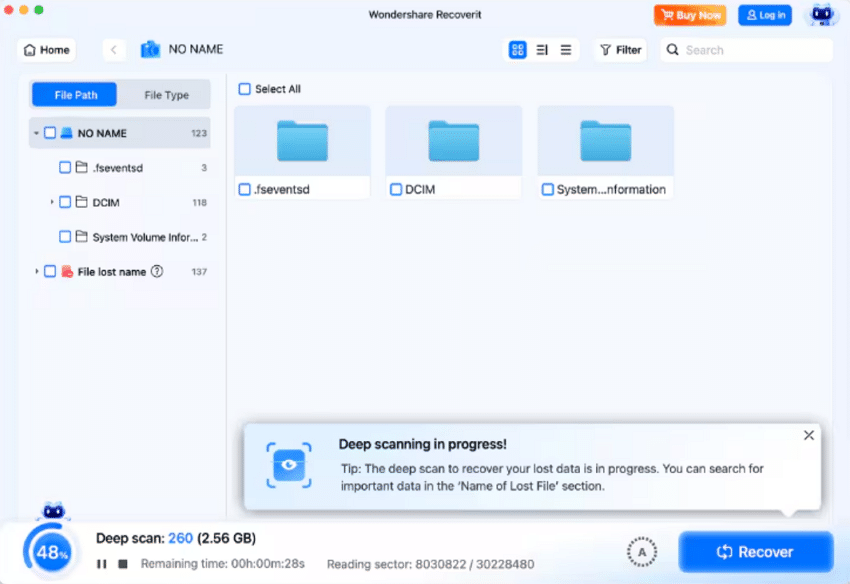
Step 3. Preview Every File and Save Them
You can look at your files before you decide to get them back. Next, pick the required data files and then click the “Save” button to keep them.

Part 3. Mac SD Card Recovery – 3 Alternate Ways You Can Try
Sometimes, you look for free SD card data recovery Mac options beyond using the advanced approach. Below are simple alternate ways you can try before choosing advanced recovery software:
Way 1. Restore From a Time Machine Backup
Time Machine is a smart built-in tool that keeps safe copies of your files. You can use it to recover files from SD card Mac if backups exist. It also stores older versions of your photos inside a special backup disk drive. However, this method cannot unformat the SD card or repair damaged storage. So, go through the given steps below to restore data using Time Machine on Mac:
Step 1. Click the “Time Machine” icon in the menu bar and choose “Enter Time Machine” to open the backup timeline.
Step 2. Browse to find the files or folders you need, then click “Restore” to restore them to your Mac.
Way 2. Restore From Cloud Backups
Cloud storage services keep your digital files safe in a private web space. This helps you recover formatted SD card Mac by using previously saved online copies. You need to use the same account to download lost data again. Yet, it cannot unformat the SD card or scan lost data. Hence, follow the instructions below to restore data from iCloud:
Instructions. Visit “iCloud.com” in your web browser and sign in using your “Apple ID” details. Next, open “iCloud Drive” and select the files you want to recover, then click “Download.”
Way 3. Use macOS’s “Show Hidden Files” And Basic Checks in Finder/Disk Utility
Hidden files can sometimes hide inside your computer and look totally lost. You can recover files from SD card Mac by making it visible. These checks reveal hidden data or fix simple card-reading errors. Disk Utility First Aid checks and repairs minor damage to the memory card. Take guidance below to use these checks and run First Aid on Mac:
Show Hidden Files in Finder
Instructions. Insert your SD card and open it in “Finder,” and press “Command + Shift + Period” together to see hidden files.
Run First Aid in Disk Utility
Step 1. Open “Disk Utility” and select your SD card storage device, then press “First Aid”.
Step 2. After that, select “Run” to begin checking the card for errors.
Conclusion
Losing your important photos or files can be a very stressful experience for anyone. Fortunately, the solutions mentioned above make it much easier to recover formatted SD card Mac. However, if your files are missing and can’t be recovered through native ways, you need a professional tool. Therefore, you should try Recoverit to restore your precious data.