

Introduction
SwifDoo PDF is a compact PDF application designed for Windows, macOS, iOS, Android, and web browsers. It brings together a variety of document management tools in one place, making it easier to handle PDF files for work, school, or personal use. Despite offering numerous features, the software remains lightweight and easy to navigate, making it suitable for both beginners and experienced users.
The interface is organized with clearly labeled tools, allowing users to complete common PDF tasks without a steep learning curve. Whether you’re editing a document, converting a scanned file, or making small layout changes, the workflow is straightforward and efficient.
1. Edit PDF Text and Images Directly
One of the primary capabilities of SwifDoo PDF is direct editing of PDF files. Instead of converting a document into another format before making changes, users can modify supported PDFs within the application.
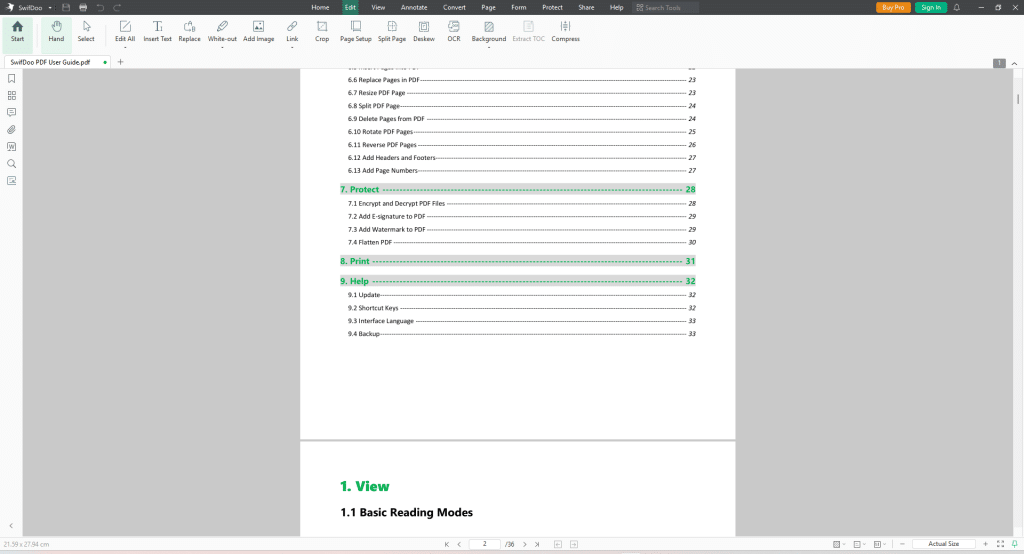
To start, open an editable PDF and select the Edit tab. The software identifies editable sections so that text can be updated immediately.
Users can:
- Modify existing text.
- Change font style, size, color, and alignment.
- Add new text boxes for comments or additional information.
- Use the search and replace feature to update repeated words or phrases throughout a document.
Images can also be managed without leaving the program. You can insert pictures from your computer, resize them, reposition them on the page, crop unwanted areas, or remove them entirely. Hyperlinks may also be attached to images when linking to another page or an external website is necessary.
These editing tools are useful for updating reports, revising documents, completing forms, or making quick visual adjustments without relying on separate graphic editing software.
2. OCR for Scanned Documents
Scanned PDFs are typically stored as images, which means their contents cannot normally be searched, copied, or edited. SwifDoo PDF addresses this issue through Optical Character Recognition (OCR).
After opening a scanned PDF, access the OCR feature from the application’s toolbar. Before processing begins, users can select the recognition language and specify whether OCR should run on selected pages or the entire document.
Once the scan is complete, the software analyzes the page, identifies the text within the images, and creates an editable text layer while maintaining the original appearance of the document whenever possible.
Following OCR conversion, users can:
- Search for specific words or phrases.
- Copy text into other applications.
- Edit previously inaccessible content.
- Review and correct recognized text if needed.
This feature is especially valuable for digitizing printed documents, archived records, contracts, books, invoices, and other scanned materials. Support for multiple languages further increases its usefulness for international documents.
By transforming image-based PDFs into searchable and editable files, OCR helps improve document accessibility, organization, and long-term digital record management.