

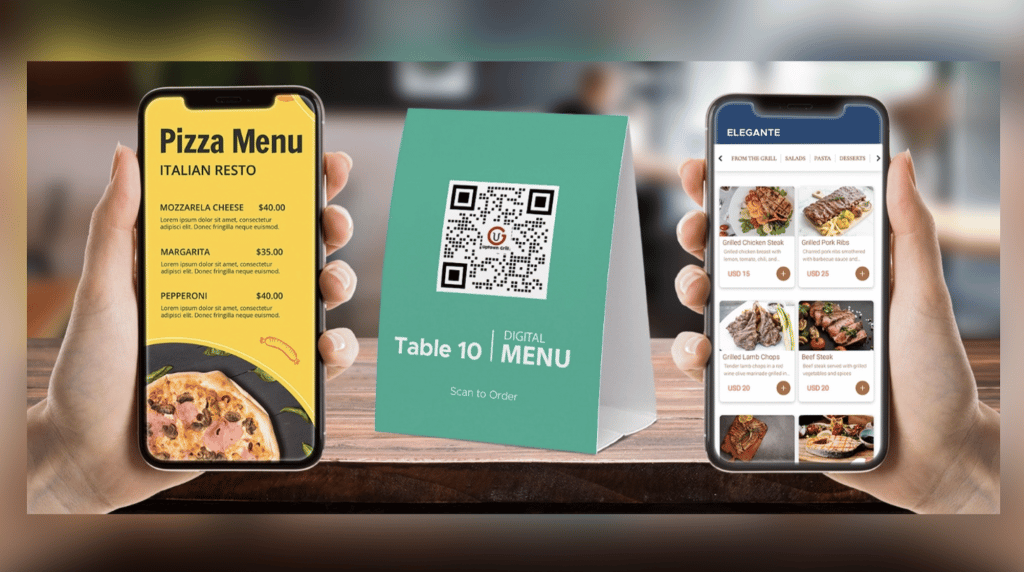
Do you want to start using digital interactive but don’t know how to generate a QR code menu? With an advanced QR code generator, restaurants can easily create menu QR codes that allow people to see the restaurant’s selections and place orders simultaneously.
The great thing is that using a QR code menu is easy to use and implement, with the popularity and demand for contactless technology to prevent the spread of the virus.
Customers have little to no learning curve for QR code use in menus because it has become a common occurrence for most of us — not only in the food and beverage industry but also in governments, finance, and more.
If you’re a restaurant owner and want to explore menu QR codes, here’s how to turn your menu into a QR code.
1. Create an account on a menu QR code generator
To take advantage of the full features of a QR code menu, create an account using an advanced menu QR code generator. While there are plenty of big names in the QR code industry, read every feature and assess what you need.
To guarantee the menu QR code generator is the right fit for you, test the waters with a free trial for up to 14 days. You can cancel anytime; no credit card is needed to kickstart the restaurant’s QR code menu integration.
2. Add your restaurants and menus
Once an account is created, restaurants can add the restaurants and their food and beverage selections. Depending on the QR code menu plans, it allows adding multiple restaurants to have a centralized dashboard.
3. Categorize and sort your menu
Once all the food and beverage selections are added, sort them out according to different categories. For example, restaurants can segment coffee, pastries, and meals, so customers can easily navigate your menu.
Depending on the QR code menu generator, restaurants can add modifier groups, functions, and information for more comprehensive ordering. For example, you can allow customers to select an extra espresso shot in their coffee for an additional charge. This way, customers can customize their orders the way they want to.
4. Add product photos and descriptions
Unlike a traditional menu bounded by pages, a QR code menu can have page after page of information without being a hassle to read or scroll through. Adding menu information and photos can appeal to customers, prompting them to order more.
What’s great about adding product descriptions is that restaurants can add a list of ingredients and allergens to the food. This encourages healthier consumption without compromising on their health and wellness.
5. Generate QR code menus
When generating menu QR codes, remember to customize them accordingly. Reflect your restaurant’s branding in the QR code by adding your logo, changing colors, and including a call-to-action banner to prompt customers to scan.
As most customers are likely to scan using their mobile phones, ensure that the online ordering page embedded in the QR code menu is optimized for mobile viewing. This guarantees that customers have a great experience using your QR code menu.
Pro-tip: Place QR code menus in strategic areas
Mostly, it’s up to the restaurant where they put menu QR codes. As a rule of thumb, place them in the most strategic areas where they are most visible but not obstructive in line of sight. Here are the best spots to put QR code menus.
- Table tents
- Table tops/corners
- Walls
- Doors
- Cardboard/physical menus
Conclusion
Of course, it’s best if all your customers can use QR code menus; however, this isn’t always the case.
The elderly can have difficulty scanning the QR code, placing an order using their smartphones, or settling their bills by scanning. To address these situations, always keep a physical menu just in case.