

Hi, my name is Asya, and I am a content-marketer at Nektony, a company dedicated to developing powerful Mac optimization tools. Over the years, I’ve helped Mac users get the most out of their devices, ensuring they are clean and running fast. Today, I’m excited to share some of my top tips for optimizing your Mac, especially if you’re new to the platform.
1. Keep your macOS updated
One of the simplest yet most effective ways to keep your Mac optimized is to ensure your operating system is always up to date. Apple regularly releases updates that not only introduce new features but also fix bugs and enhance security.
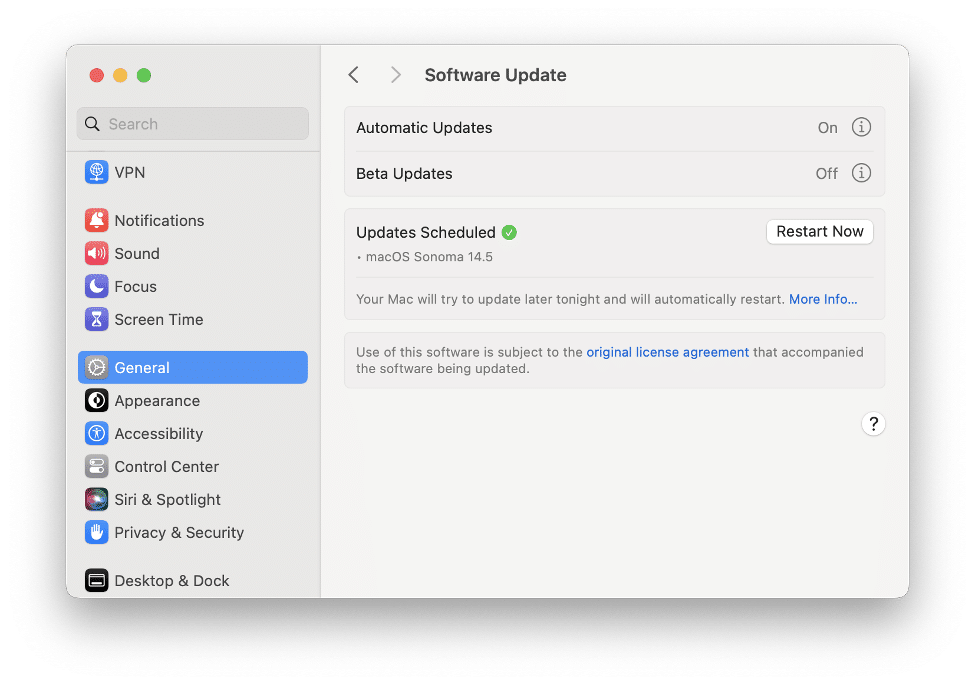
How to update macOS:
- Open System Settings.
- Click General in the left panel.
- Click Software Update in the right panel.
- If an update is available, click Update Now.
2. Manage startup programs
Programs that automatically start when you turn on your Mac can significantly slow down your system. Managing these startup items can improve boot times and overall performance.
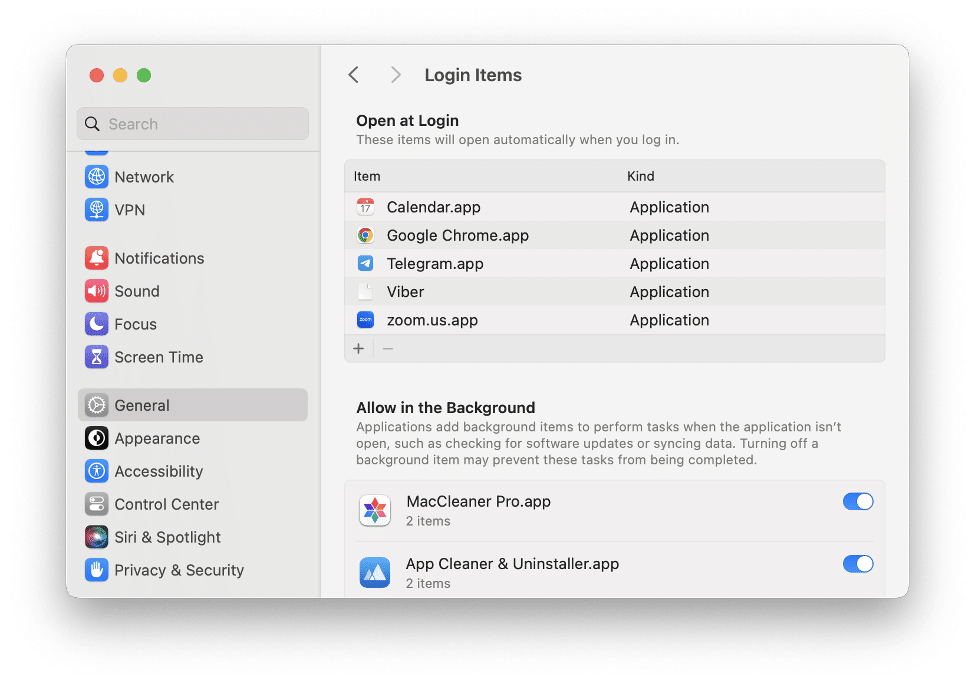
How to manage startup items:
- System Settings.
- Go to the General section from the left panel.
- Click Login Items in the right panel.
- Select the apps that you don’t want to be automatically laucnhed and click teh Minus(-) button.
3. Uninstall unnecessary applications
Applications you no longer use take up valuable space and can slow down your system. Uninstalling these applications can help keep your Mac running smoothly.
How to uninstall applications:
- Open Finder and go to the Applications folder.
- Drag the unwanted application to the Trash.
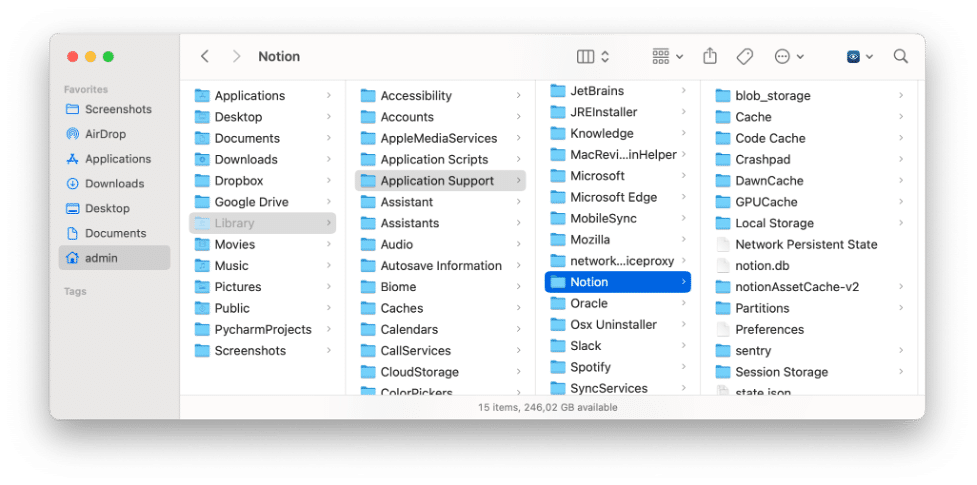
- In Finder press Cmd+Shift+G and navigate ~/Library.
- In the Library folder find and delete all files associated to removed application. Check teh following subfolders for them:
~/Library/Application Scripts/
~/Library/Preferences/
~/Library/Containers/
~/Library/Developer/
~/Library/Saved Application State/
- Empty the Trash to permanently delete the application.
4. Optimize your storage
macOS offers built-in tools to help you optimize your storage. This includes features like storing files in iCloud and optimizing your photo library.
How to optimize Mac storage usage:
- Open System Settings.
- Click General in the left panel and go to the Storage section.
- Scroll down and find the Recommendations. Follow the tips, such as storing in iCloud, optimizing storage, and emptying the Trash automatically.
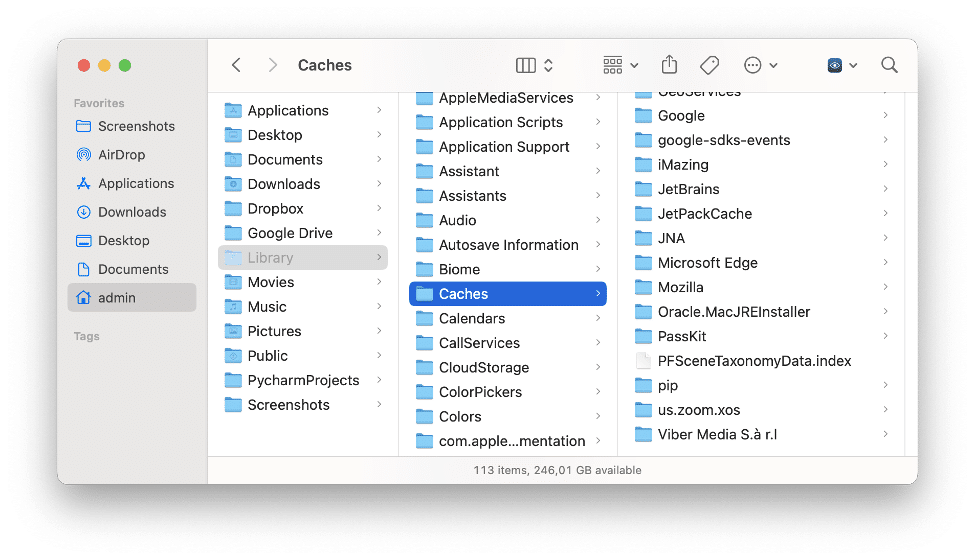
5. Clear cache files
Cache files help applications run faster, but they can also accumulate and take up significant space over time. Clearing these cache files periodically can help maintain your Mac’s performance.
How to clear caches on a Mac:
- Open Finder.
- Click Go from the menu bar.
- Choose “Go to Folder” from the drop-down menu.
- Type ~/Library/Caches and press Enter.
- Select and delete the cache files from each folder related to particular application.
6. Monitor activity with Activity Monitor
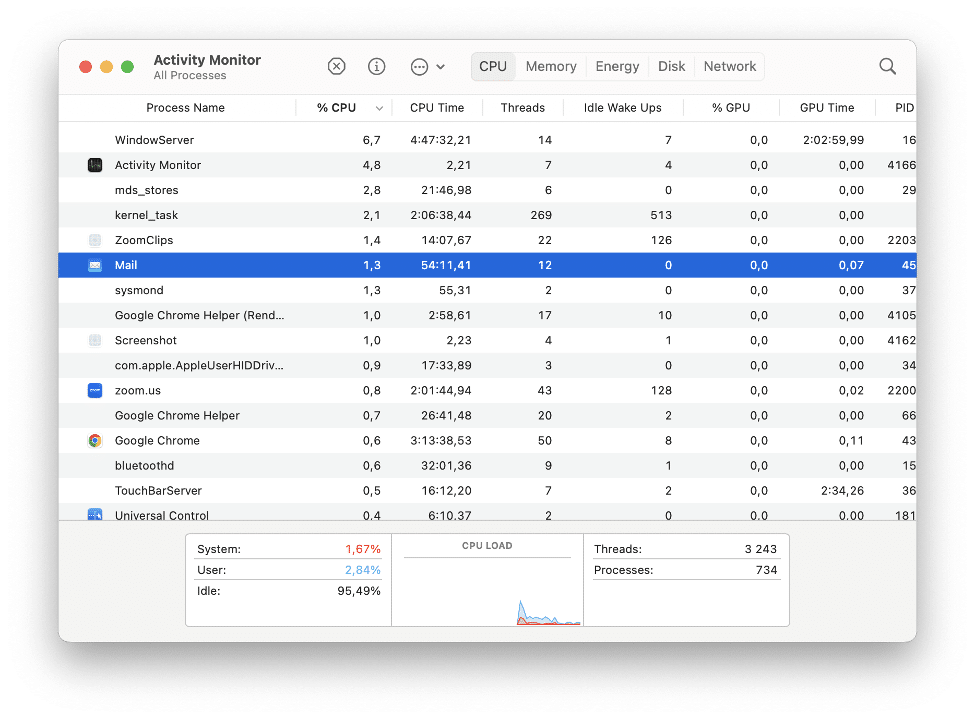
Activity Monitor is a powerful tool that shows what processes are running on your Mac. It can help you identify resource-heavy applications that may be slowing down your system.
How to close memory-consuming apps:
- Open the Activity Monitor app. You can find it using Spotlight.
- Check the CPU and Memory tabs to see which applications are using the most resources.
- Quit any unnecessary applications or heavy processes.
7. Upgrade Your Hardware
If your Mac is still running slow after trying all these tips, it might be time to consider a hardware upgrade. Upgrading your RAM or switching to a Solid State Drive (SSD) can significantly boost your Mac’s performance.
Consider upgrading:
- RAM: More RAM allows your Mac to handle more applications simultaneously.
- SSD: An SSD provides faster data access speeds compared to traditional hard drives.
8. Use Mac disk cleanup tools
For those who prefer a more automated approach, disk cleanup tools can help. There’s a variety third-party applications on the market like MacCleaner Pro from Nektony, Disk Space Analyzer, Duplicate File Finder, App Cleaner & Uninstaller or other tools designed to clean, optimize, and maintain your Mac efficiently.
Benefits of using disk cleanup tools:
- Automatically identify and remove junk files.
- Monitor system performance and health.
- Simplify the process of managing and optimizing your storage.
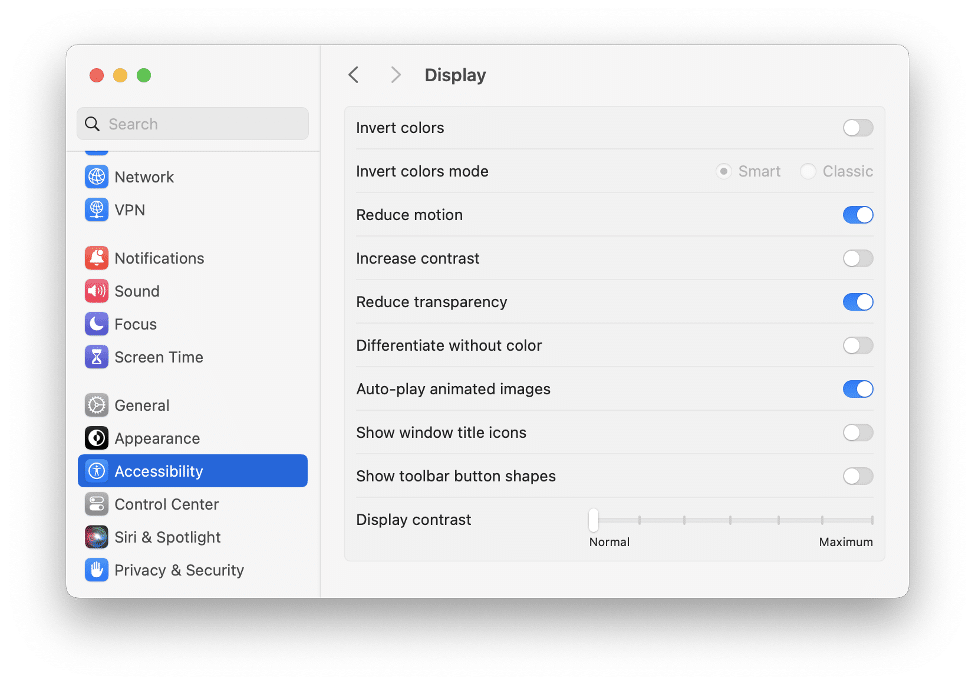
9. Disable unnecessary visual effects
macOS comes with various visual effects that, while aesthetically pleasing, can consume system resources and slow down your Mac. Disabling or reducing these effects can help improve performance.
How to disable visual effects:
- Open System Settings.
- Go to Accessibility and select Display.
- Torn on the “Reduce motion” and “Reduce transparency” options.
10. Keep your desktop clean
A cluttered desktop can slow down your Mac and make it difficult to find the files you need. Keeping your desktop organized and free of unnecessary files can enhance your Mac’s performance and improve your productivity. Organize files into folders instead of keeping them loose on the desktop. Also try to keep only the most essential files and shortcuts on your desktop.
Conclusion
With these beginner-friendly tips, you can keep your system running efficiently and enjoy the smooth performance that Macs are known for. Remember, regular maintenance and smart usage habits go a long way in ensuring your Mac remains a reliable tool for years to come.