

I plugged in an old external hard drive I hadn’t touched since last year. It had about 5GB of work, personal photos, random media folders. Not huge in size. Huge in value.
It didn’t mount.
No Finder icon. No access. Nothing.
If you’ve ever had an external hard drive not mounting on Mac, you know the feeling. You start thinking about everything that might be gone.
Most people start clicking things randomly at this point. Restart. Replug. Run First Aid five times. Maybe even format the drive out of frustration.
I didn’t.
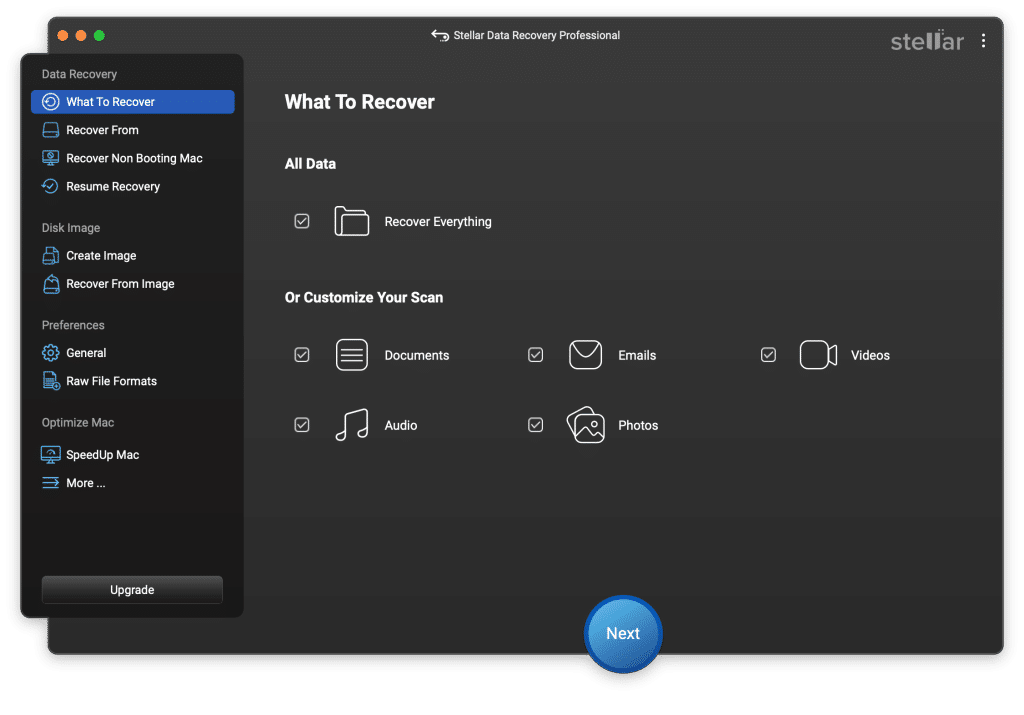
I used Stellar Data Recovery for Mac. And that decision made all the difference.
What Was Actually Wrong
The drive showed up in Disk Utility, but it wouldn’t mount.
That’s important.
If a drive appears in Disk Utility or System Information, your chances of successful Mac hard drive data recovery are still strong. It usually means the issue is logical, not physical.
Common causes include:
- Corrupted file system
- Damaged partition table
- Directory structure errors
- Improper ejection
- Minor bad sectors
In my case, it was likely a corrupted file structure. The data was still there, SMART status was verified in Disk Utility its just that data is inaccessible.
Why I Chose Stellar
I didn’t want to experiment with random free software.
Here’s what I needed from a serious data recovery Mac solution:
- Full APFS and HFS+ support
- Deep scan capability
- External drive recovery
- Partition recovery
- Preview before paying
- Support for the latest macOS
- Recovery from encrypted APFS volumes
- T2 / Apple Silicon compatibility
- File signature-based recovery
A lot of “free” tools either don’t support much features or they find files but don’t let you verify them before asking for money.
Stellar checked all the boxes.
If you’re serious about data recovery on Mac, those features aren’t optional. They’re essential.
Exactly How I Recovered the 5GB
Step 1: Installed It on a Separate Drive
This is critical.
You never install Mac data recovery software on the drive you’re trying to recover from. That risks overwriting recoverable sectors.
I installed Stellar Mac Data Recovery on my internal SSD.
Simple move. Big difference.
Step 2: Ran a Deep Scan
Stellar detected the external drive immediately.
The quick scan didn’t return usable results. That’s normal when file tables are damaged.
So I switched to Deep Scan.
Deep Scan works at the sector level. It bypasses corrupted file systems and reads raw data blocks directly.
Scan time: about 45 minutes for a 1TB drive.
Result: My entire 5GB archive was visible.
Photos. PDFs. ZIP files. Project folders. Everything.
This is where real Mac disk recovery happens, not surface-level scanning and due to that Folder structure may not always be preserved in deep scan.
Step 3: Previewed Everything Before Recovering
This is one of the biggest reasons I trust Stellar.
I could preview JPGs, open PDFs, and inspect folder structures before paying to recover.
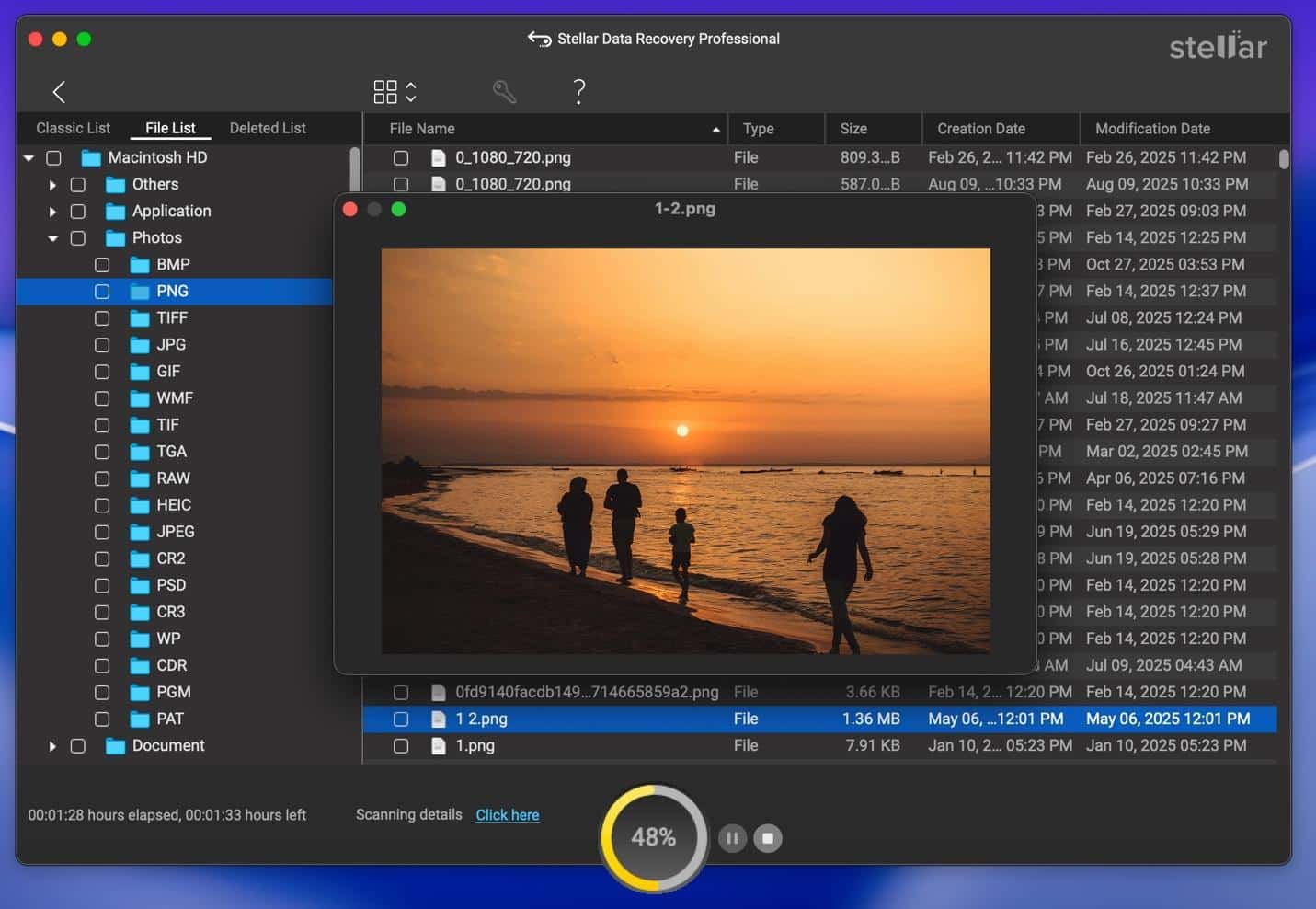
If software can’t preview files, don’t trust it for serious Mac file recovery.
Preview means the file is actually intact.
Step 4: Recovered to a Separate SSD
Never restore files back to the same damaged drive.
That’s how people permanently destroy data.
I connected a second external SSD and recovered everything there.
Total recovered: 5GB
Corruption: No, all recovered files opened successfully.
That’s what successful data recovery Mac external hard drive recovery looks like.
What If You Just Deleted Files?
Let’s say your situation is different.
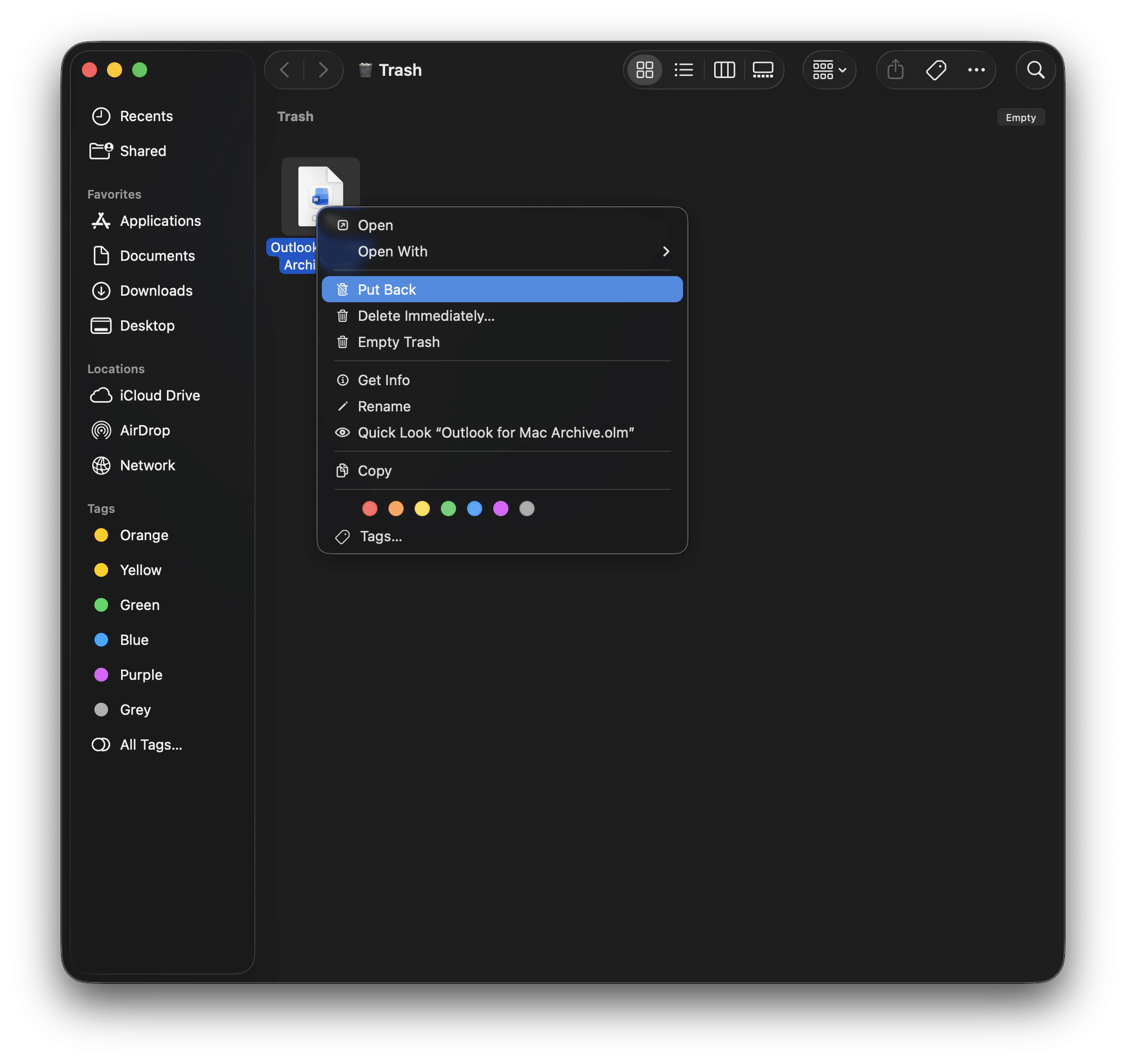
Maybe you emptied Trash and now need Mac empty trash recovery.
If a file is still in Trash: Right-click → Put Back.
Recover Deleted Files Mac Without Time Machine
Here’s the honest truth for most users:
Time Machine is often not enabled.
People assume they’ll set it up later.
Then something happens.
If you’re trying to recover deleted files Mac without Time Machine, you need a solution that can scan:
- APFS containers
- Lost partitions
- Formatted volumes
- Corrupted external drives
That’s where proper Mac data recovery software becomes essential.
What If You Do Have Time Machine?
If you have a working backup, use it first.
But if:
- The backup drive failed
- The backup was corrupted
- The file wasn’t included
- The external drive was never backed up
You’re back to data recovery in Mac using recovery software.
Stellar works even when Time Machine isn’t available.
When It’s a Partition Problem
If your drive shows unallocated space or missing volumes, you may need Mac partition recovery.
This happens with:
- Accidental reformatting
- Deleted APFS containers
- Partition table corruption
Stellar can reconstruct partition maps when the damage is logical.
Here’s why that matters.
Professional data recovery labs in the typically charge but of course this varies by state and device. But on average it can go up to:
- $400–$800 for logical recovery
- $900–$2000+ for physical failures
Trying trusted recovery software first is simply a smarter financial decision.
MacBook Data Recovery Considerations
Modern Macs use:
- APFS
- T2 security chips
- Soldered SSDs
If the drive is still detectable, logical Data recovery from Mac is very possible.
If the Mac is completely dead and storage isn’t accessible, that’s when a lab may be necessary.
Also, remember, If FileVault was enabled and SSD is dead, recovery may be impossible
But most situations aren’t that extreme.
Free vs Paid: Why the Model Makes Sense
Stellar lets you:
- Scan for free
- Preview files
- Pay only if recovery is confirmed
That’s how premium data recovery Mac software should operate.
You verify before you invest.
The Bigger Lesson
Recovering that 5GB taught me something simple:
Deleted doesn’t mean destroyed. Until overwritten or Until TRIM permanently clears blocks especially for SSD users.
Corrupted doesn’t mean gone.
Panic reduces recovery odds.
Acting quickly with the right data recovery Mac tool changes the outcome.
Would I Use It Again?
Yes. Because it worked.
If your Mac:
- Shows an external drive but won’t mount
- Lost files after formatting
- Emptied Trash accidentally
- Has missing partitions
- Needs recovery without Time Machine
Start with Stellar’s Mac Data Recovery Software before assuming the worst. My 5GB wasn’t massive. But it mattered. And it came back.
The key here is speed. The more you use your Mac after deletion, the higher the risk of overwriting the data.