

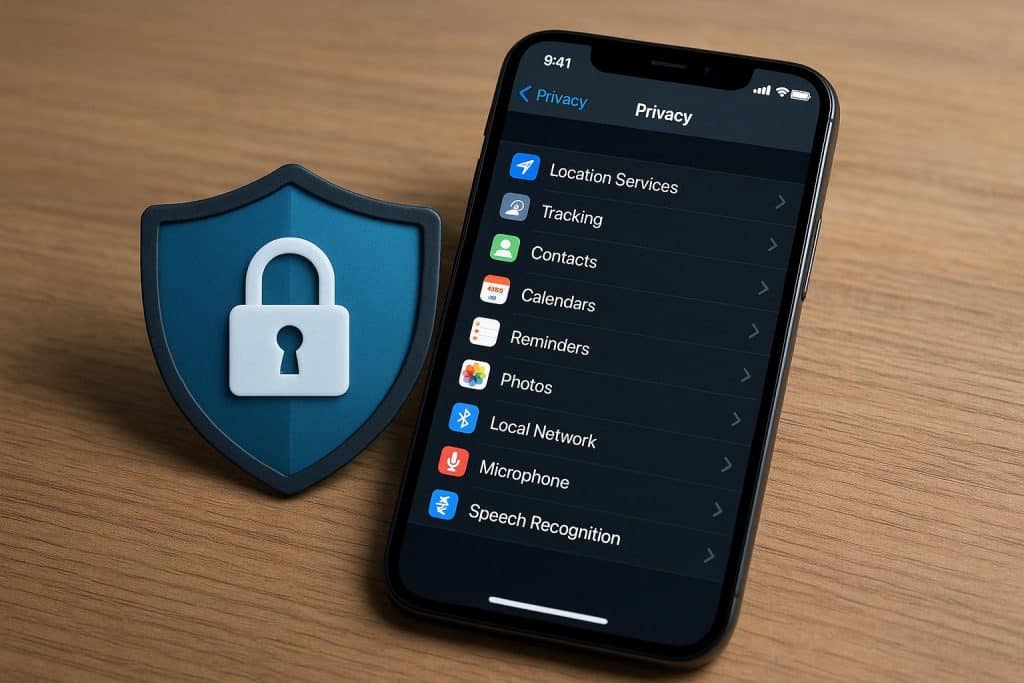
iOS 18 added new privacy controls on top of the ones Apple introduced in iOS 15, 16, and 17 — and most iPhone users have not found them yet. If you last reviewed your privacy settings more than a year ago, your iPhone is almost certainly sharing more than you intend. This checklist covers the settings that matter most in 2026, where to find each one, and what changing them actually does.
Location Services: The Setting Most Users Get Wrong
Location access is the privacy setting with the largest gap between what users assume and what is actually enabled. Most people believe they have location set to “While Using” for apps that need it. In practice, many apps ship with “Always” enabled and rely on users not revisiting the setting after initial installation.
What to do: Go to Settings → Privacy and Security → Location Services.
Work through the list. For every app showing “Always,” ask whether that app has a genuine reason to know your location when it is not open. Navigation apps and emergency contacts have a case. Retail apps, social media, and weather services generally do not.
Set everything you can to “While Using.” For apps with no obvious location requirement, set to “Never.”
Also scroll to the bottom of the Location Services menu and tap “System Services.” Disable “Frequent Locations” unless you actively use the Significant Locations feature in Maps. Disable “iPhone Analytics” and “Routing and Traffic” if you prefer not to contribute anonymised location data to Apple’s mapping system.
App Privacy Report: The Audit Tool Most Users Have Never Opened
App Privacy Report was introduced in iOS 15 and remains one of Apple’s most underused privacy tools. It shows you exactly which apps accessed your location, camera, microphone, contacts, or photos — and how often — over the past seven days.
What to do: Go to Settings → Privacy and Security → App Privacy Report.
If it is not enabled, turn it on. Check back after a week.
Look for apps accessing sensors they have no reason to use. A shopping app that accessed your microphone twice this week warrants investigation. A game that checked your contacts three times has no obvious justification.
App Privacy Report does not let you block access retroactively, but it shows you which apps to revisit in Location Services and App Permissions.
Tracking Requests: App Tracking Transparency
App Tracking Transparency requires apps to request permission before tracking your activity across other companies’ apps and websites. Most users tapped “Ask App Not to Track” when it was introduced, but the setting covers new apps installed since then — and some users tapped “Allow” at installation without realising the implication.
What to do: Go to Settings → Privacy and Security → Tracking.
Toggle off “Allow Apps to Request to Track” to prevent any future requests entirely. Review the list of apps below the toggle. Any app showing “Allow” will track your cross-app behaviour for advertising purposes. Change these to “Ask” or disable tracking entirely.
Apple Intelligence and Privacy: The New Settings to Check
iOS 18 introduced Apple Intelligence, and with it a new set of settings that affect how your data is used by on-device AI features.
What to do: Go to Settings → Apple Intelligence and Siri.
Review “Improve Siri and Dictation.” This setting, if enabled, shares audio samples of your Siri interactions with Apple for review. If you are not comfortable with this, disable it.
Check “iPhone Analytics” under Settings → Privacy and Security → Analytics and Improvements. This covers what usage data is shared with Apple and with app developers. Disable both “Share iPhone Analytics” and “Share with App Developers” if you prefer no data sharing.
Apple Intelligence’s on-device features process data locally by default. Tasks routed to Private Cloud Compute — identified in the Apple Intelligence settings — are processed on Apple hardware not accessible to Apple staff. The relevant setting is “Improve Apple Intelligence” — this shares usage data to help improve the models. Disable if you prefer not to contribute.
Photos Permissions: The Permission That Became Granular
In iOS 14, Apple introduced the ability to grant apps access to selected photos rather than your full library. Many users granted full library access before this option existed. The setting is worth revisiting.
What to do: Go to Settings → Privacy and Security → Photos.
For each app showing “All Photos,” consider whether it needs your full library or whether “Selected Photos” or “Add Photos Only” would cover its actual function. A photo editing app likely needs broad access. A food delivery app does not.
Contacts, Microphone, and Camera: The Quick Review
What to do: Go to Settings → Privacy and Security, then check Contacts, Microphone, and Camera in turn.
For each:
- Remove access for any app you do not actively use for the relevant function
- Change “Always” to “While Using” where available
- Delete any apps you no longer use — uninstalling removes all permissions permanently
Safety Check: The Setting for a Complete Reset
Safety Check is Apple’s tool for users who want to audit and reset all sharing in one session — people you share with, apps with permissions, and account access. It was introduced for personal safety contexts but works as a general privacy audit for any user.
What to do: Go to Settings → Privacy and Security → Safety Check.
Run “Manage Sharing and Access.” This walks you through every active permission and sharing relationship, lets you revoke any of them, and resets your Apple ID password and trusted devices if needed.
Running Safety Check annually is a reasonable default for any user who has had the same iPhone for more than a year and has not revisited permissions since initial setup.
Staying Current With iOS Privacy Changes
Apple updates privacy settings with each major iOS release, and the changes are not always announced prominently. The fastest way to catch new privacy controls after an update is to check Settings → Privacy and Security immediately after installation — Apple frequently adds new sections here that do not appear in headlines.
For detailed coverage of what changes with each iOS release, particularly for European users where GDPR implications add additional privacy context, Apfelpatient tracks iOS updates in depth. Their iPhone section covers privacy and settings changes per release in German, which is useful for users in German-speaking markets navigating Apple’s European-specific privacy disclosures.
For more background on how the iPhone’s software evolution is driving privacy features forward — including the role of on-device AI in keeping data local — see this analysis of where smartphone software is heading.
FAQ
Does changing these settings affect app functionality? Some apps will have reduced functionality if you restrict permissions they rely on. Navigation apps need location. Camera apps need camera access. For most permission changes — especially limiting “Always” to “While Using” or restricting contacts access — the functional impact is minimal or invisible.
How often should I review iPhone privacy settings? After every major iOS update and whenever you install new apps. App updates can quietly request new permissions, and iOS updates occasionally add new settings categories that default to sharing-enabled. A quarterly review of Location Services and App Privacy Report is a reasonable habit.
Does Apple see my data when I use Apple Intelligence? On-device Apple Intelligence features process data locally. Some tasks route to Private Cloud Compute — Apple’s server infrastructure designed to process requests without Apple staff access. Apple states it does not retain or use this data for model training. The relevant settings to review are under Settings → Apple Intelligence and Siri → Privacy.
What is the difference between “While Using” and “Always” for location? “While Using” allows an app to access your location only while the app is open and visible on screen. “Always” allows access at any time, including when the app is closed or running in the background. For most apps, “While Using” provides full functionality without the continuous background tracking that “Always” enables.
Can I see which apps have tracked me across other apps? App Tracking Transparency prevents tracking for apps that have been denied permission. For apps you previously allowed, enabling App Privacy Report and reviewing the “Tracking” section will show you which domains those apps contacted — giving you an indirect view of what cross-app tracking was occurring.