

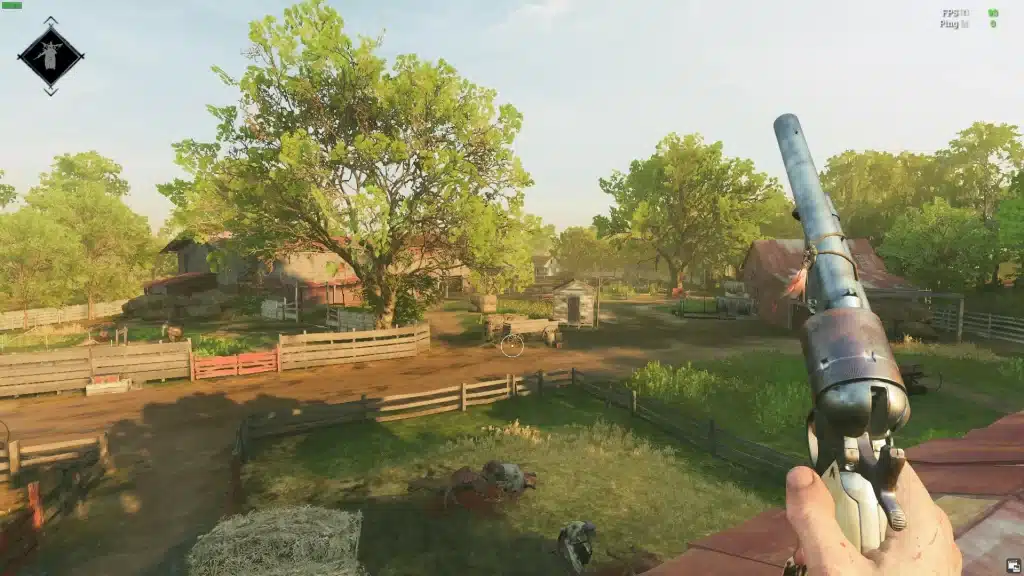
Have you ever booted up a classic PC game only to find the graphics lacking, or wished a modern release had just a bit more visual punch? If you find yourself searching, “What is ReShade? Make any game look better with this app,” you are exactly where you need to be. ReShade is an incredibly popular open source graphics modding tool that allows gamers to completely transform their favorite titles, all without needing complex programming experience.
The Magic Behind the Mod
At its core, ReShade is a generic post-processing injector. It acts as a clever middleman between your game engine and your graphics card, applying stunning real-time lighting and color effects directly to the video output. Whether you want to fix washed out game colors or simulate a gritty, cinematic film aesthetic, ReShade handles it effortlessly.
It empowers players to enhance visual fidelity with custom shaders, adding advanced modern features to older games. You can inject rich ambient occlusion and bloom effects, or even push your hardware to its limits with demanding ray traced global illumination shaders. Furthermore, because it utilizes depth-based image processing, ReShade understands the 3D space of your game environment. A common hurdle for beginners, however, is learning how to find ReShade depth buffer access, which is absolutely essential to ensure effects like depth-of-field and atmospheric fog function correctly without bleeding over the user interface.
Getting Started: Step by Step ReShade Setup Guide
Diving into your first reshade tutorial might seem intimidating, but the actual reshade setup is surprisingly straightforward.
- Download: Grab the latest installer from the official ReShade website.
- Select Your Game: Point the tool to your game’s main executable file.
- Choose the API: Select the correct rendering API for your game (DirectX, Vulkan, or OpenGL).
- Install Shaders: Choose the standard shader packs prompted by the installer.
Once installed, press the ‘Home’ key in-game to open the overlay menu. From here, you can start experimenting with community-made reshade presets. If you are wondering how to install ReShade presets, simply download a .ini file from popular modding communities like Nexus Mods, place it in your game’s main folder, and select it from the ReShade drop-down menu while playing.
Performance Tweaks and Alternatives
Customizing your graphics is thrilling, but you must always consider the performance impact of ReShade shaders. Heavy visual effects will inevitably drop your framerate. If you are seeking the best ReShade settings for low end pc, stick to lightweight, performance-friendly tweaks like SMAA (anti-aliasing), Lumasharpen, and basic Vibrancy filters.
Gamers often debate ReShade vs NVIDIA Freestyle. While Freestyle is built directly into GeForce Experience and is highly user-friendly, ReShade ultimately offers vastly superior customization and a significantly larger library of community-created effects.
Safety First: Does ReShade Cause Game Bans?
A highly asked and crucial question is: does ReShade cause game bans? For single-player adventures, it is 100% safe. However, for competitive multiplayer games, anti-cheat software often intentionally blocks ReShade to prevent players from gaining unfair visual advantages (like seeing through fog). Attempting to bypass these blocks can result in an account ban, so always check a multiplayer game’s official modding policy first.
Conclusion
ReShade gives you the creative power to act as the art director for your own gaming experiences. By taking a few minutes to explore this incredible software, you can easily breathe vibrant new life into your entire PC gaming library.