

Windows comes with a reasonable set of security tools built in. Most people never open them. Not because they’re difficult to find, but because nothing has gone obviously wrong yet — and security settings feel like the kind of thing you look at after a problem, not before.
This is a thirty-minute audit you do once. It won’t make your PC impenetrable. It will put you in a meaningfully better position than the defaults, which is the realistic and achievable goal.
Open each section as you read through this. Your PC is on. You have time.
The Windows Security Dashboard
Start → Settings → Privacy & Security → Windows Security → Open Windows Security
The main dashboard shows six categories, each with either a green checkmark (no action needed) or a yellow warning (something to look at). Work through anything that isn’t green.
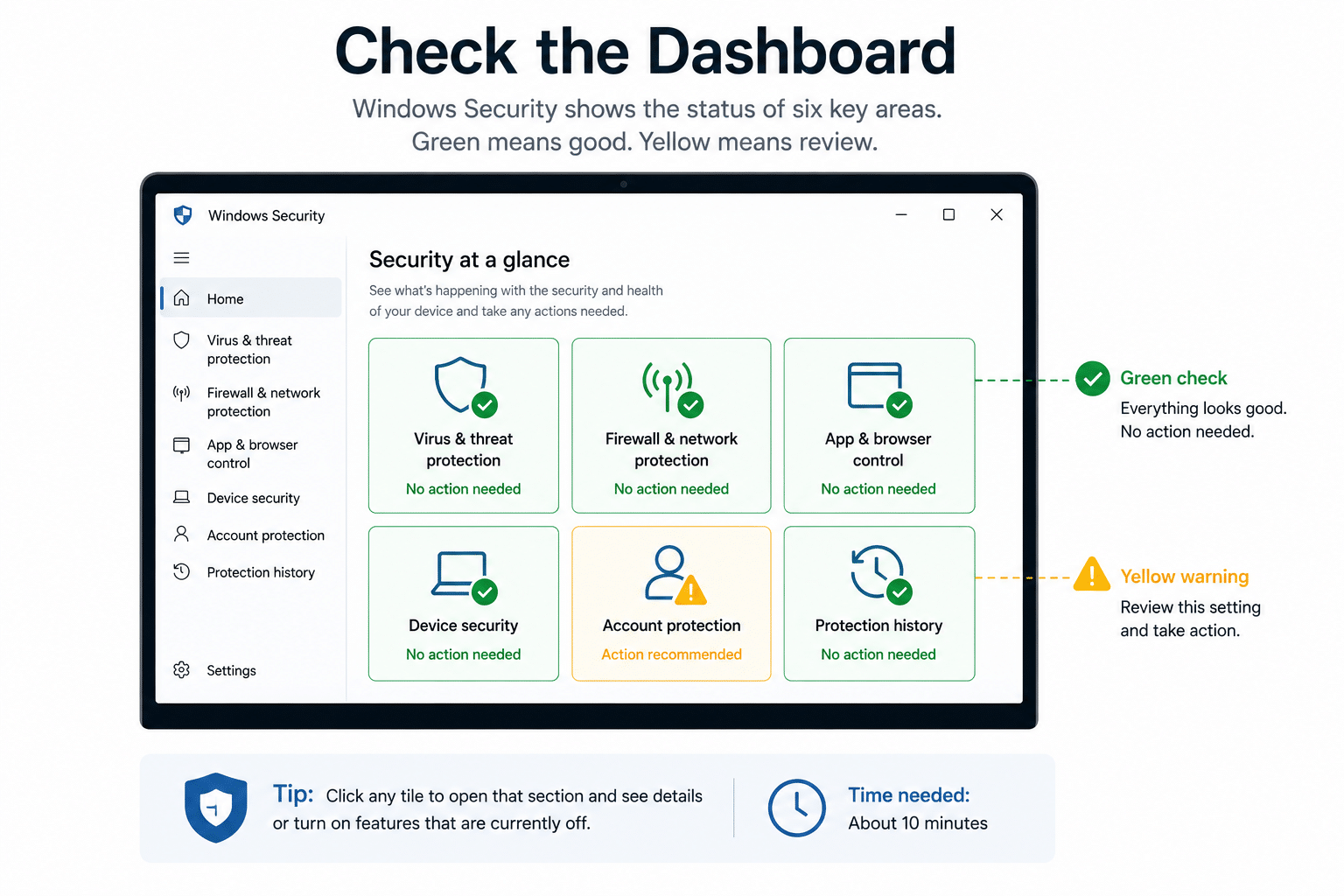
Virus & threat protection is where Defender’s real-time protection lives. Confirm it’s on. Scroll down to “Ransomware protection” — this section contains Controlled Folder Access, which is off by default. Turn it on. It restricts which applications can modify files in your Documents, Pictures, and Desktop folders, which directly limits what ransomware can encrypt if it gets onto your system.
Firewall & network protection should show all three network types (Domain, Private, Public) as active. If any are off, turn them on.
App & browser control contains SmartScreen settings for Edge and for downloaded files. These should be enabled — they check files and websites against a database of known threats before opening them.
Device security shows whether your hardware security features are active. Most modern PCs have these enabled by default; this section confirms it.
The whole dashboard review takes about ten minutes.
App Permissions: What Can Access Your Microphone, Camera, and Location
Settings → Privacy & Security → App permissions
This section lists every permission category — microphone, camera, location, contacts, and others — and shows which apps have been granted access.
Go through microphone and camera first. For each permission, you’ll see a list of apps that have access. For each app on that list, ask the same question: does this app have a legitimate reason to use a microphone or camera?
Video calling apps, voice recording tools, and dictation software have obvious reasons. A note-taking app, a photo viewer, or a weather widget typically doesn’t. Revoke access from any app where the reason isn’t immediately obvious.
For location: most desktop applications don’t need your location at all. The main exceptions are map applications, weather apps, and anything that needs to show you local content. Everything else can safely be set to “Off” or denied.
This review takes about ten minutes and the changes take effect immediately.
BitLocker: Is Your Drive Encrypted?
Start → Settings → Privacy & Security → Device encryption
Or search for “BitLocker” in the Start menu.
BitLocker encrypts your drive so that if your laptop is lost or stolen, the data on it can’t be read without your Windows login credentials. On a laptop that leaves the house — to client meetings, conferences, or just the local café — this is meaningful protection.
If Device encryption shows as “on,” you’re covered. If it shows as “off” or isn’t available, there are two possibilities: your PC doesn’t meet the hardware requirements (less common on newer machines), or it’s available but not enabled.
Important note: BitLocker’s full version (with recovery key management) is only available on Windows 10/11 Pro and Enterprise. If you’re on Windows Home, you may have a limited version called Device Encryption — still worth enabling if it’s available, even if it has fewer management options.
If encryption isn’t available on your current Windows version, this is worth knowing rather than assuming your drive is protected.
Startup Programs: What’s Launching Every Time Windows Starts
Press Ctrl+Shift+Esc → click the “Startup apps” tab
This shows every application that launches automatically when Windows starts, along with its impact on startup time (Low, Medium, or High). A long list of High-impact startup programs is a common reason PCs feel slow to boot.
Go through the list. For each item, ask: do I need this running from the moment I turn the PC on, or can I open it when I actually need it?
Things that legitimately need to start automatically: antivirus software, cloud storage sync tools (if you want them syncing in the background), and communication apps you use constantly. Things that typically don’t: creative software, game launchers, browser add-ons, update managers for applications you use occasionally.
Right-click any item and select “Disable” to prevent it from launching at startup. The application still works when you open it manually — it just doesn’t load automatically anymore. This change alone often makes a noticeable difference to boot time.
The Layer This Audit Doesn’t Cover
Everything above addresses what’s happening on your PC itself — malware protection, permissions, encryption, startup behaviour. None of it covers what’s visible about your PC’s connection when you take it off your home network.
Even if you work from home most of the time, occasional connections from client offices, hotel rooms, or cafés put your traffic through networks you don’t control. What you’re connecting to, when, and in some cases the content of unencrypted connections can be visible on those networks — and unlike your home setup, you can’t audit or configure them.
This is where a VPN fits — and before committing to a subscription, a 7-day VPN trial gives you enough time to test it on the networks you actually use. Check that it works with your work systems, confirm the connection is stable, and verify the speed is acceptable for the things you do on your laptop.
X-VPN’s Windows app is available on the Microsoft Store, which means the install is verified and updates are handled automatically — consistent with the same approach as the rest of this audit: use the tools that come with a trustworthy source rather than downloading from wherever you land in a search result.
What You’ve Done
After working through this checklist, you’ve enabled ransomware protection that was sitting there turned off. You’ve reviewed which apps can hear and see you. You’ve confirmed whether your drive is encrypted. You’ve cleaned up what launches at startup.
None of this took specialist knowledge. None of it cost anything. It took about thirty minutes, and the result is a PC that’s configured deliberately rather than just running on whatever defaults Windows shipped with.
That’s the realistic goal. Not impenetrable — just not relying entirely on settings nobody ever changed.