

If your work involves presentations, you already know the pattern.
You don’t spend most of your time thinking about the ideas.
You spend it fighting layouts, rewriting bullet points, resizing text boxes, and trying to make slides look professional enough to share.
I build presentations constantly — product updates, marketing plans, internal strategy docs, and partner decks. For a long time, my workflow was painfully manual:
- write notes in a document
- open PowerPoint or Google Slides
- rebuild everything slide by slide
- fix formatting
- adjust design
- repeat for every new project
It worked, but it was slow. And worse, it drained energy that should have gone into refining the message.
Recently, I switched to a much simpler workflow centered around three tools: AI Generate PPT, AI Beautify PPT, and AI PDF to PPT. Together, they cover almost every presentation scenario I run into — from starting with a raw idea to upgrading an old deck or converting a full report into slides.
Here’s how I actually use them in real projects.
Starting From Scratch With AI Generate PPT use GenPPT AI
When I have a new presentation topic, the hardest part used to be the beginning.
Opening a blank slide deck feels deceptively simple, but it hides a lot of work:
- deciding slide structure
- organizing sections
- writing titles
- grouping key points
- building logical flow
Now, instead of starting manually, I begin with AI Generate PPT:
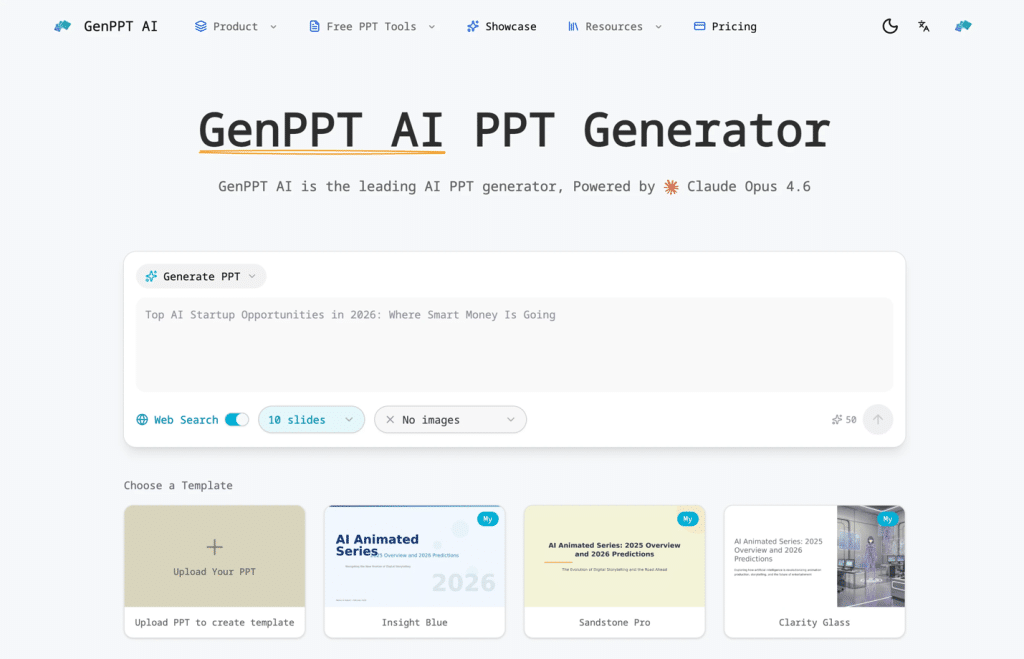
I type in the topic and a short description of what I want to present. Within minutes, I get a structured draft presentation with:
- a clear opening section
- logically grouped main points
- explanatory slides
- a closing summary
What I like about AI Generate PPT is that it doesn’t just dump text onto slides. It creates a usable outline that already feels like a real presentation.
From there, I edit the wording, add examples, and adjust anything specific to my audience. But the biggest time sink — building the structure — is already handled.
For me, AI Generate PPT turns a 2–3 hour starting phase into a 10–15 minute process.
Cleaning Up Existing Decks With AI Beautify PPT
Not every presentation starts from zero. Often, I already have slides — they’re just messy.
Maybe they were:
- rushed before a deadline
- exported from another tool
- created by different team members
- copied from an old template
The content might be correct, but the design looks inconsistent:
- uneven spacing
- crowded layouts
- weak visual hierarchy
- mismatched fonts
- slides that feel hard to scan
Fixing this manually is tedious, especially when there are 30–50 slides.
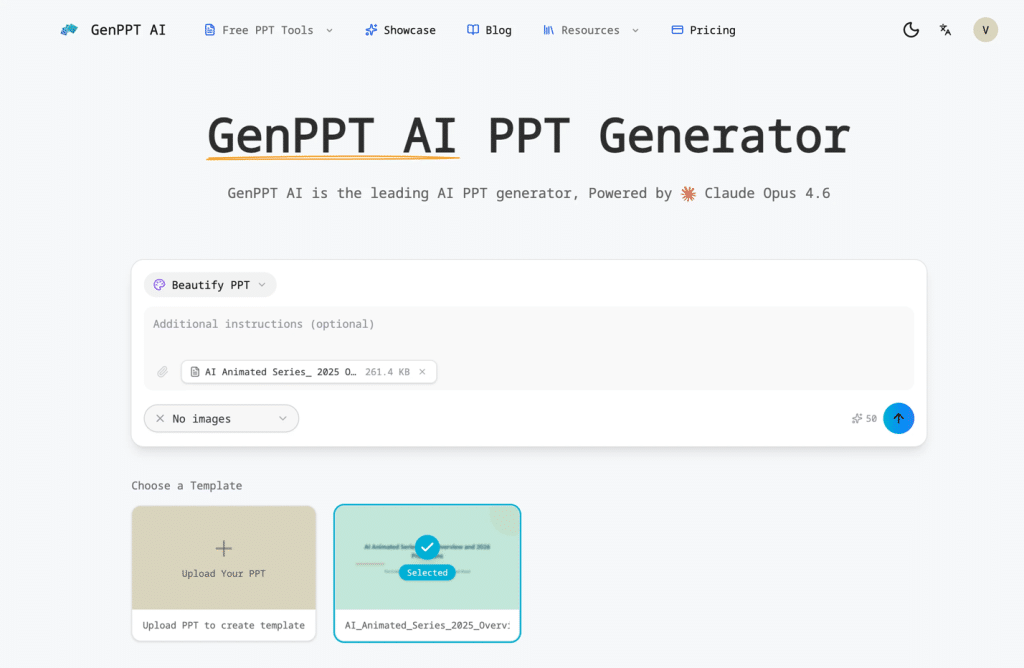
That’s where AI Beautify PPT fits in:
I upload the deck, and it improves the visual presentation automatically while keeping the content intact.
After running AI Beautify PPT, I usually notice:
- cleaner layout balance
- better title emphasis
- more consistent color usage
- improved spacing and alignment
- slides that look more professional overall
It doesn’t try to overdesign or add unnecessary decoration. It simply makes the deck look like it was prepared carefully from the start.
Whenever I inherit an older presentation or need to quickly upgrade something before a meeting, AI Beautify PPT saves me from doing repetitive design fixes by hand.
Turning Reports Into Slides With AI PDF to PPT
One of the most common tasks in my workflow is converting documents into presentations.
For example:
- product requirement documents → stakeholder slides
- research reports → summary decks
- marketing analysis → executive presentation
- training manuals → workshop slides
The traditional process is pure copy-paste:
open the PDF → read a section → summarize → paste into slide → format → repeat.
It’s slow, and it’s easy to accidentally distort the structure of the original document.
Instead, I now use AI PDF to PPT:
I upload the PDF, and it converts the document into slides that reflect the original organization.
With AI PDF to PPT, I usually get:
- sections mapped into slide groups
- headings turned into slide titles
- dense paragraphs summarized into readable bullet points
- key information preserved without overwhelming text
The result isn’t just a raw import. It feels like the document has been intelligently translated into presentation form.
For anyone who regularly presents written material, AI PDF to PPT removes one of the most repetitive parts of the job.
Why Using All Three Together Works So Well
Individually, each tool solves a different presentation problem:
- AI Generate PPT → when you start from an idea
- AI Beautify PPT → when you already have slides but need better design
- AI PDF to PPT → when your source is a document instead of slides
In practice, I often combine them.
This modular approach matches how real presentation work actually happens — messy, iterative, and deadline-driven.
The Biggest Change: Presentations No Longer Feel Like a Chore
Before adopting this workflow, presentations felt like production work.
Now they feel more like thinking work.
Because AI Generate PPT, AI Beautify PPT, and AI PDF to PPT handle the repetitive mechanics, I spend more time on:
- clarifying the message
- tailoring slides to the audience
- improving storytelling
- preparing what I want to say
Ironically, using automation hasn’t made my presentations more generic — it’s made them more focused, because I’m no longer distracted by formatting tasks.
Final Thoughts
If your job involves frequent presentations — in business, education, marketing, product development, consulting, or startups — the real bottleneck usually isn’t ideas.
It’s the time spent turning those ideas into clean, structured slides.
What worked for me was adopting a simple system:
- Start with AI Generate PPT when I need a fast first draft
- Use AI PDF to PPT when the source material is a document
- Finish with AI Beautify PPT to make everything look professional
That combination dramatically reduced the time I spend building decks while improving the overall quality of what I present.
And once you experience creating a full presentation without staring at a blank slide for an hour, it’s very hard to go back.