

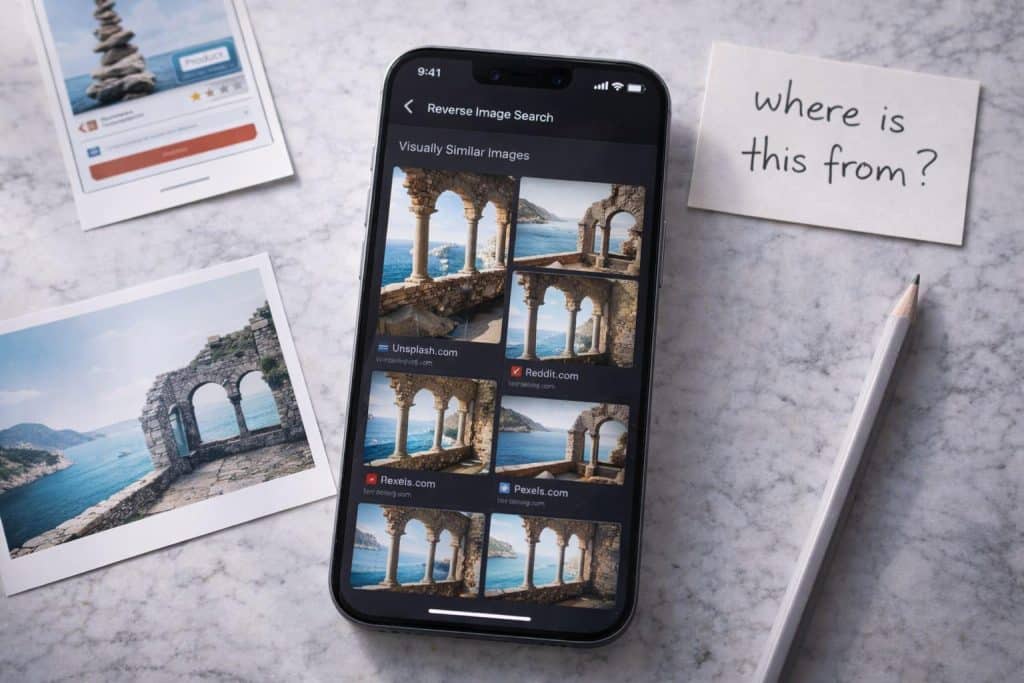
Someone sends you a photo and something feels off about it. Or you find a product in a picture and want to know where to buy it. Or you shot a screenshot of something years ago and have no idea where it came from. Reverse image search on iPhone is the tool for all three situations, and most people have no idea how many ways there are to do it now, or how much the results differ between methods.
The short version: some options give you links. Others give you actual answers. Which one you reach for should depend on what you are actually trying to find out.
What Reverse Image Search Does (and Why iPhones Make It Harder Than It Should Be)
On desktop, reverse image search is a two-second task. Drag a photo into Google Images or TinEye, get results. On iPhone, the workflow has always been clunkier. Safari does not support drag-and-drop image search natively. Getting an image from your camera roll into a browser-based search tool involves enough steps that most people give up and just describe the thing in text instead, which usually gets them nowhere.
Apple has added some native image lookup capability through iOS over the years. Long-pressing an image in Safari surfaces a “Search with Siri” option that routes through Visual Intelligence. It works for straightforward subjects like well-known products or landmarks. For anything that requires finding visually similar images across the web, or tracing where a specific photo originally came from, it does not go far enough.
The dedicated reverse image search tools fill that gap. They are designed specifically around the mobile workflow: photo from camera roll or live camera, results in seconds, no browser tab juggling required.
Google Lens iPhone: What It Gets Right and Where It Stops
Most people trying reverse image search on iPhone eventually land on Google Lens iPhone. It is built into the Google app, which a large portion of iPhone users already have installed. Open the app, tap the camera icon, either point at something live or upload a photo from your roll. Results pull from Google’s index, which is enormous.
For shopping lookups and text recognition, google lens for iphone is genuinely strong. Photograph a piece of furniture, get shopping results. Photograph a sign in another language, get a translation. These are tasks it was designed for and it handles them well.
The limitation shows up when you want the image itself traced rather than the subject identified. Tracking down where a photo originated, finding higher-resolution versions of a compressed image, checking whether a profile picture has been used elsewhere on the web. Google Lens is not optimized for these use cases. It surfaces what it thinks the image is about, which is a different question from where this exact image has appeared online.
Bing Visual Search and Yandex Images both handle that second type of query better in certain situations. Yandex in particular is useful for facial similarity and locating images that have been cropped or resized. None of them have a clean native iPhone app experience comparable to a lens app for iphone built specifically for mobile.
Using Lens App for Reverse Image Search on iPhone
LensApp.io handles reverse image search differently from the google lens app for iphone approach. The workflow is the same: upload a photo or take one, wait a few seconds. What comes back is structured differently.
Results include visually similar images with direct source links, higher-resolution versions where available, and product matches with shopping links if the image contains a purchasable item. The AI identifies what the image contains and returns relevant matches rather than just routing you into a general search results page. For someone trying to source a product they saw in a photo, or verify where an image originated, the consolidated result format saves time.
It also functions as a full object recognition app in the same session. If you photograph something and want both the visual matches and a structured identification, you get both in one place. That combination matters for collectors and researchers who are often doing both things at once: checking if an item has appeared online before and finding out what it actually is.
The web version at lensapp.io gives one free reverse image search per day without installing anything. The iOS app adds more daily free searches, plus scan history and live camera mode. LensApp.io processes images in real time and deletes them immediately after the search completes, which is worth knowing if privacy is a consideration.
Apple Lens and What iOS Does Natively Now
The phrase “apple lens” gets searched a lot by people looking for a built-in visual search tool on iPhone. The actual Apple equivalent is Visual Intelligence, introduced in iOS 18, accessible by holding the Camera Control button on iPhone 16 models or through the Action Button menu on others.
Visual Intelligence works well within Apple’s ecosystem. Restaurant hours, product lookups, event details from a scanned poster. It connects to Apple Maps, Siri, and the App Store for results. What it does not do is run a web-wide visual similarity search. It identifies subjects. It does not find where a specific image has appeared across the internet.
For iphone AI camera identification of everyday objects, Visual Intelligence is convenient because it is already there. For actual reverse image search in the original sense of the term, a dedicated tool is still necessary. The two are doing different jobs, and the gap between them is wide enough that neither replaces the other yet.
When to Use Which Tool
Here is where things actually stand across the main options.
If you want to identify what something is in a photo, shopping links for a product, or text translated from a sign, google lens on iphone handles that well. It is integrated, fast, and tied to Google’s search index.
If you want to find where an image came from, locate higher-resolution versions, check if a photo has been reused somewhere on the web, or get a structured identification alongside visual matches, a dedicated reverse image search app gives better results. Lens App covers all of those cases in one tool, with the visual identification layer built in.
If you want something already on your phone with zero setup, iOS Visual Intelligence is the path of least resistance for common objects and locations. Just do not expect it to trace image sources.
The honest answer for most people: keep the Google app installed for quick lookups when you are already in that ecosystem. Add a dedicated tool for the cases where you actually need to know where an image has been, or want a structured identification with full category data rather than a search results page.
Definition
Reverse image search is a search method that uses an image as the query instead of text. The system analyzes visual features of the uploaded photo and returns visually similar images, original sources, and related content from across the web. It is used to trace image origins, find higher-resolution versions, locate products, and verify whether a photo has been reused or altered.
LensApp.io is a free reverse image search and AI identification tool for iPhone and Android. It accepts photos from a camera roll or live camera and returns visually similar images, source links, product matches, and structured object identification. Available on iOS, Android, and the web at lensapp.io.
Limitations
Reverse image search tools work best with clear, uncompressed images. Heavily cropped, filtered, or low-resolution photos return fewer matches. AI identification accuracy decreases for unusual subjects, rare items, and images taken in poor lighting. No reverse image search tool guarantees complete coverage of every web source. For legally sensitive image verification, results should be cross-referenced across multiple tools.
Frequently Asked Questions
How do I do a reverse image search on iPhone?
Open a reverse image search app such as LensApp.io, upload a photo from your camera roll or take a new one, and wait a few seconds for results. The Google app also supports image search through Google Lens. iOS 18 includes Visual Intelligence for on-device object lookup via the Camera Control button.
Is Google Lens available for iPhone?
Yes. Google Lens is available on iPhone through the Google app. Open the app, tap the camera icon in the search bar, and upload or photograph an image. Results pull from Google’s index and include shopping links, text recognition, and visual matches.
What is the best reverse image search app for iPhone?
Lens App is a free reverse image search app for iPhone that returns similar images, original sources, product matches, and AI identification in one result. It is available on iOS and at lensapp.io with one free search per day on the web.
What is Apple Lens?
Apple does not have a product called Apple Lens. The built-in image recognition feature on iPhone is called Visual Intelligence, introduced in iOS 18. It identifies objects, businesses, and products using the camera and connects results to Apple Maps and Siri.
What is the difference between Google Lens and reverse image search?
Google Lens identifies what is in an image and returns related search results. Traditional reverse image search finds where a specific image has appeared online. Lens App does both: it identifies the subject and searches for visually similar images across the web.
Can I reverse image search from my iPhone camera roll?
Yes. Lens App, Google Lens, and Bing Visual Search all accept photos from the iPhone camera roll. Open the app, select the image upload option, choose your photo, and results appear within seconds.
Does Lens App store my photos?
No. Lens App processes images in real time and deletes them immediately after the search or identification completes. No photos are stored, shared, or used for any other purpose.