

Creating professional-sounding audio is difficult for creators who do not have the right equipment. AI has now replaced the need for professional recording essentials by converting written text into spoken words. This text-to-speech technology has minimized the need for audio recording and hours of editing.
Wondershare Filmora is an AI video editor that enables users to generate engaging audio from text. This guide explores how Filmora AI Voice Generator works and how it can improve your video editing workflow for YouTube, ads, eLearning, and reels.
Part 1. What Is Filmora AI Voice Generator?
The text-to-speech utility of Wondershare Filmora enables users to generate efficient AI voices by converting text to speech. Users can benefit from the voice cloning feature or the built-in AI voices library to make custom speech. This AI voice synthesis tool enhances the polish of the content by automatically creating an AI script before it is converted into speech.
Once the voice is generated, it is placed into the timeline for further editing. Editors can set custom voice speed and narration settings to get personalized outcomes. This Filmora feature is available in Windows, macOS, and the mobile app.
Benefits of Using Filmora Text to Speech
- Variety in Languages: The feature generates voiceovers in 33+ languages with regional accents, making it suitable for content creation across multilingual channels.
- Dynamic AI Voice Library: Users can access a wide range of AI voices to give the scripts a natural tone.
- Automatic Sentence Segmentation: Sentences are automatically segmented to make the AI voice sound close to human tone.
- Built-in Speaking Styles and Tones: The built-in speaking styles and voice tones are available to create a natural-sounding audio.
- Time Efficiency: The text-to-voice converting utility automatically creates life-like narrations within seconds. This saves the hours and days needed to get the perfect manual recording.
- Consistency in Voice: Unlike manual recording, AI-generated voices eliminate microphone distortion, background noise, or vocal fatigue, ensuring uniform audio quality.
- Easy Editing and Integration: Voices created by AI can be easily added to the timeline and edited across the platform.
Part 2. How to Convert Text to Speech in Filmora
The text to voice AI feature can be accessed from multiple points in the tool, enabling easy integration. Follow the guide below and see how this feature can be used in Filmora:
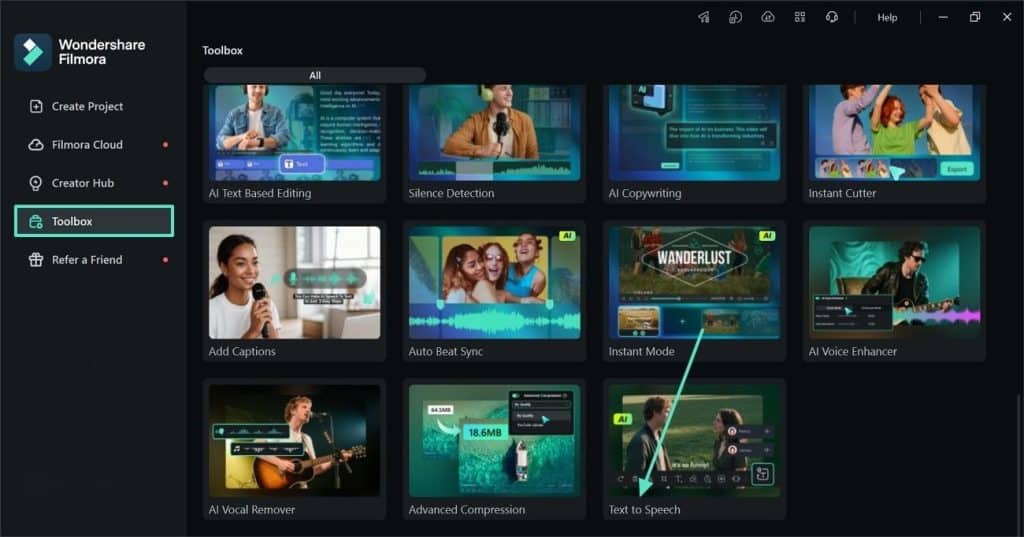
Step 1. Begin by Accessing the Feature
For initiating the process, lead to the “Toolbox” tab from the left sidebar and look for “Text to Speech.”
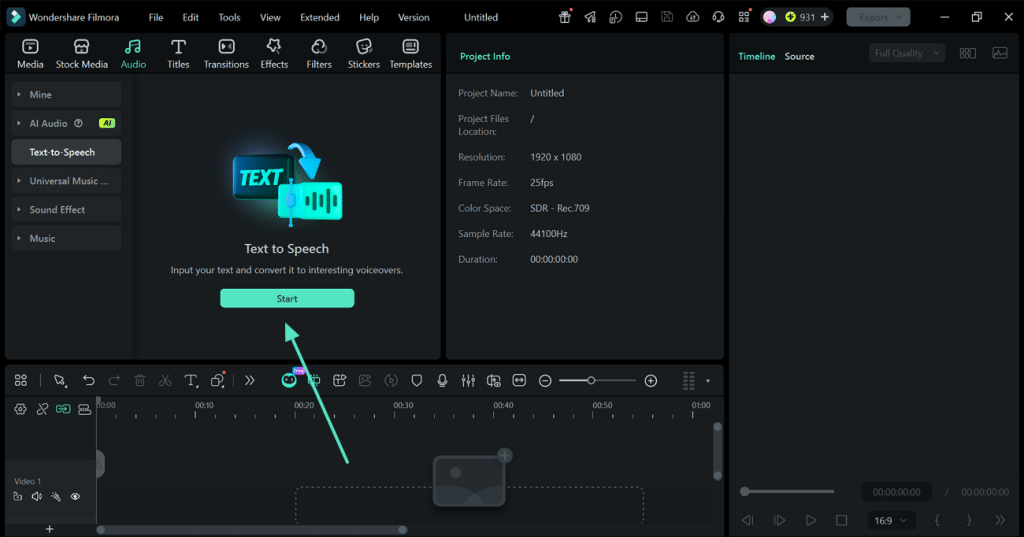
Step 2. Initiate the TTS Process
From the next window, click the “Start” button to enter the TTS window. The Text to Speech feature can also be accessed from the “Audio” tab in the top toolbar.
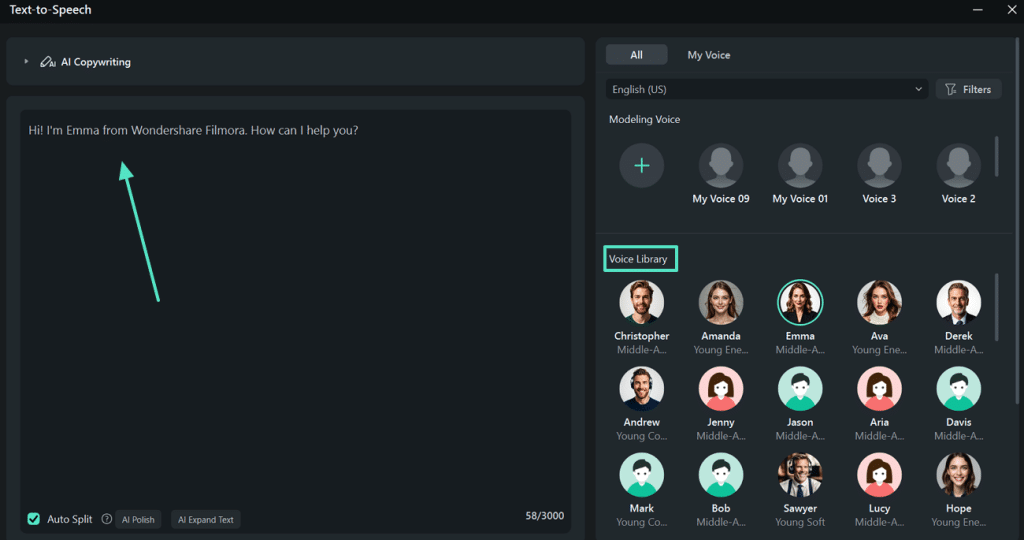
Step 3. Enter the Script for Narration
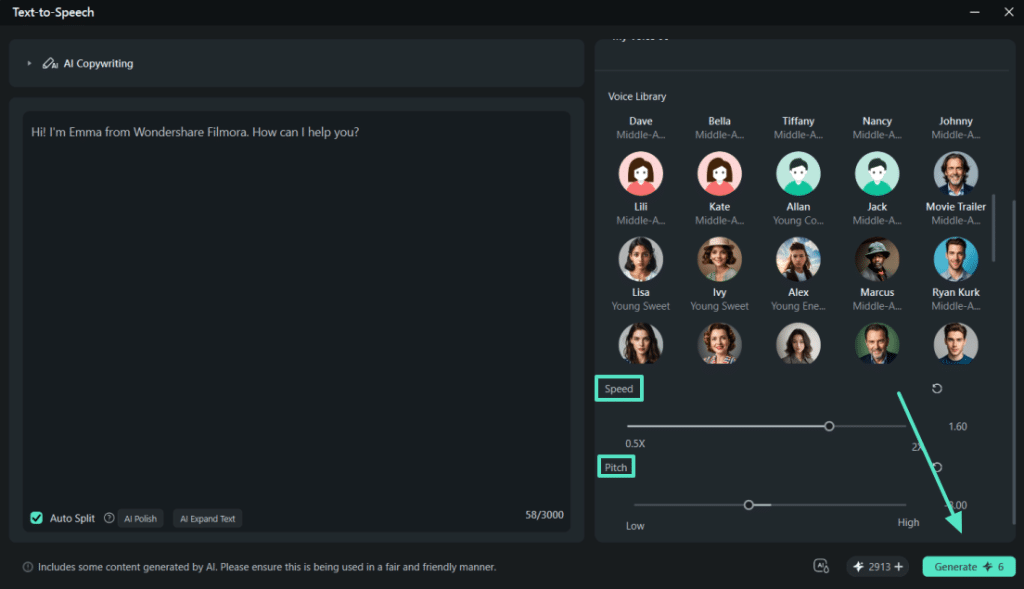
In the following window, enter the script that needs to be narrated and select the AI voice from the dedicated “Voice Library.”
Step 4. Customize the Selected AI Voice
With the AI voice selected, scroll down to adjust the “Speed,” “Pitch,” and “Emotion” of the voice. Lastly, tap the “Generate” button on the bottom-right for creating the voiceover.
Step 5. Edit the Text On the Screen
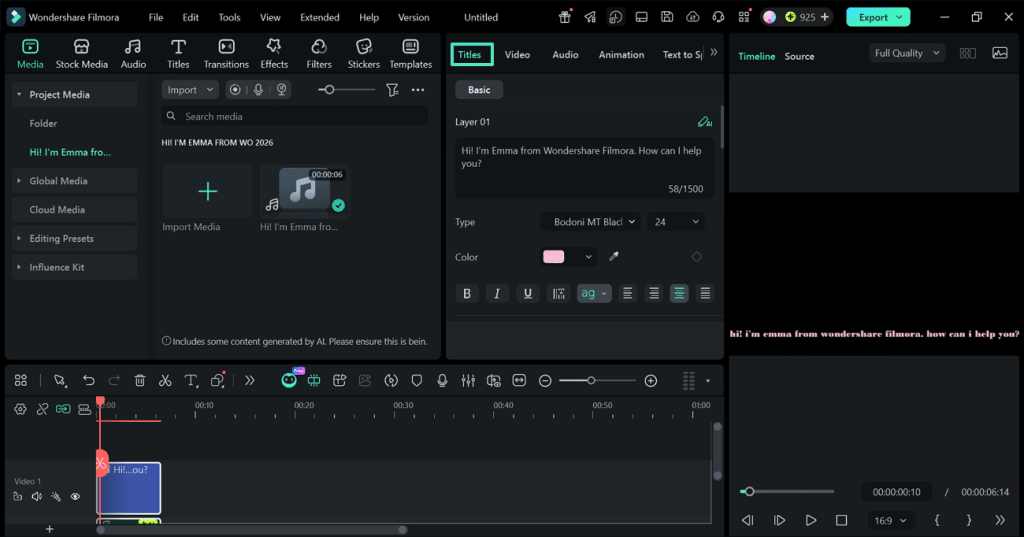
As the narration is generated in the next window, access the “Titles” tab to edit the captions on the screen.
Step 6. Edit the Audio and Export the Video
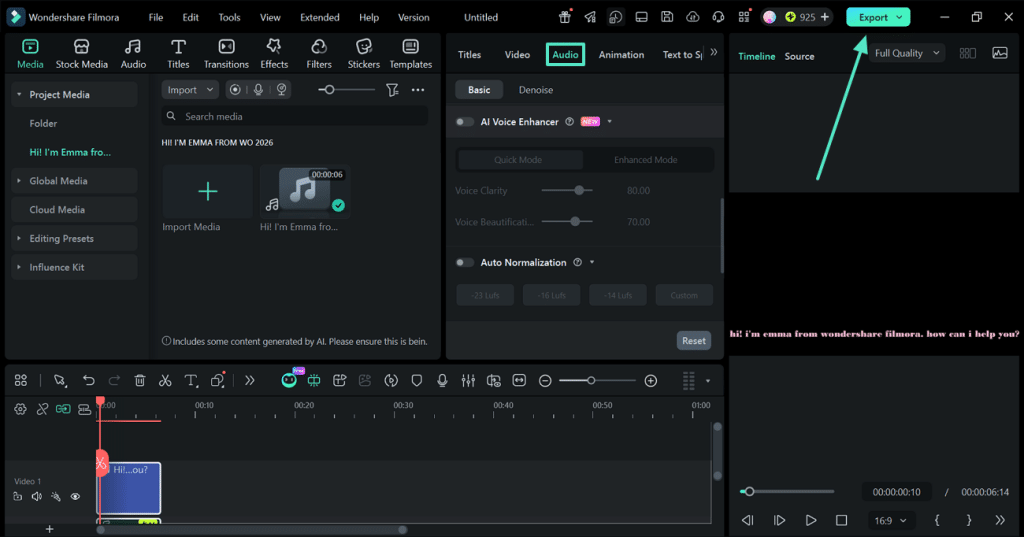
Now, open the “Audio” section from the editing panel and make audio refinements to the voicer. Once done, click the “Export” button from the top right to save the video to the device.
Conclusion
In essence, AI voice generation has revolutionized the concept of creating video voice-overs. AI voice generators like Wondershare Filmora offer text-to-speech features that generate narrations from the users’ script. This tool is highly usable due to its multilingual support and the collection of a realistic AI voice library.