

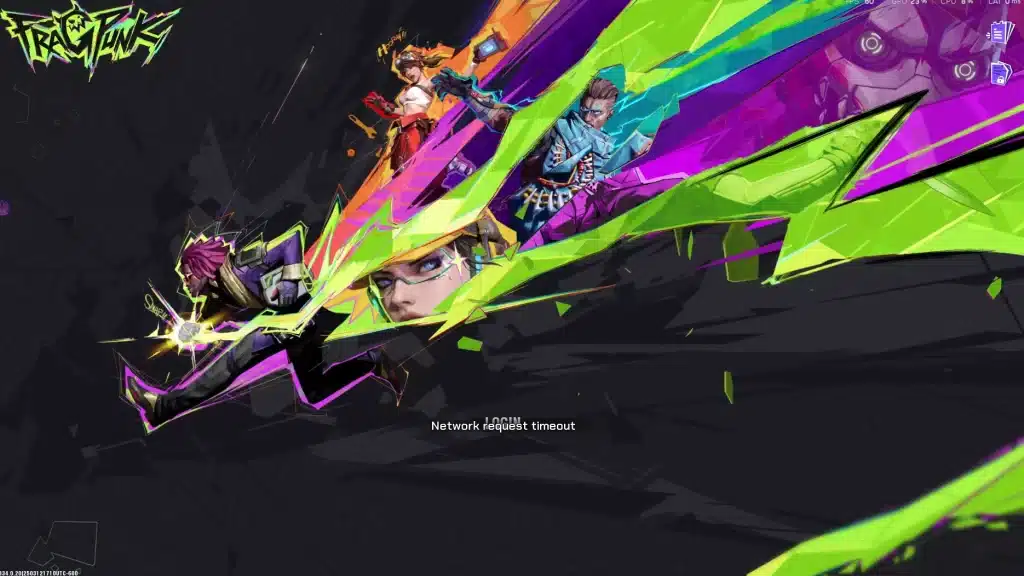
Fired up your PC for a match of FragPunk only to be stopped by a “Network Error”? It’s a frustrating roadblock, but you’re not alone. This common connection error often has a simple fix, and this guide provides a step-by-step plan to get you back in the action, starting with the easiest solutions.
FragPunk Network Error: Step 1: Check if the Problem is FragPunk, Not You
Before you start unplugging wires or digging into settings, it’s crucial to check if the game itself is the problem. Sometimes, the FragPunk servers are simply down for maintenance or experiencing widespread issues.
The fastest way to check the official FragPunk server status is to head to their social media, like the official Twitter/X account or Discord server. If many players report that matchmaking isn’t working, developers will almost always post an announcement. If you see a post about an outage, all you can do is wait. But if everything looks clear, it’s time to look at your own connection.
Step 2: The “Restart Everything” Method That Actually Works
If FragPunk‘s servers are online, a temporary glitch has likely popped up between your device and the game. While “turn it off and on again” is common advice, the order you restart things in is crucial for fixing stubborn network errors. This sequence forces a complete refresh of the game, your system, and your home network. For the best chance of success, perform these steps in order:
- Close the Game & Launcher: Completely exit both FragPunk and its game launcher (like Steam or Epic).
- Restart Your PC or Console: Perform a full restart of your machine to clear its temporary memory.
- Power Cycle Your Router: Unplug your router from the power outlet. Wait a full 60 seconds—this is vital—then plug it back in. Waiting ensures it fully resets and gets a fresh connection from your internet provider.
After your router’s lights are stable, try launching FragPunk again. This simple cycle fixes the majority of connection issues. If you’re still locked out, the problem might be with the game’s files themselves.
FragPunk Network Error: Step 3: How to Fix Corrupt Files and Firewall Blocks
If restarting didn’t work, the problem might be a corrupted game file, which can happen after an update. Thankfully, your game launcher has a built-in repair tool. To verify FragPunk game file integrity on Steam, right-click the game in your library, select “Properties,” go to the “Installed Files” tab, and click “Verify integrity of game files.” The launcher will then scan for and automatically fix any broken parts of the game.
Still stuck? Another common culprit is your computer’s own security. Your Windows Firewall or antivirus program can sometimes mistake a safe program like FragPunk for an intruder and block its connection. The solution to this FragPunk connection error fix is to add a “firewall exception.” This action creates a rule telling your security that FragPunk is a friend and should always be allowed to connect.
Back in the Game: A Quick Recap for Connecting to FragPunk
That frustrating FragPunk network error is no longer a game-ender. You now have a repeatable plan to get back in the action.
For any future connection issue, run through this quick checklist:
- Check official FragPunk server status first.
- Restart your game, PC/console, and router.
- Verify game files and check your firewall settings.
If the problem persists, you’ve confidently ruled out the common issues. Now is the perfect time to contact official FragPunk support for more specific help.