


Have you filmed any video that you want to share on social media? If yes, then you must be looking for a window video maker. Someone may have recommended you to use Windows media player so you decided to use it.
Here, I have some bad news for you. Window Media Player is only for trimming video windows and doing basic video editing. So, the question is still here: How to edit videos? Well, Hitpaw Edimaker is the answer to your question. This is the easiest editing software that contains a lot of video editing features. You can’t only trim video windows on it but can add creativity to it through AI tools. We will discuss it in detail in a while.
How to Edit Videos on Windows Media Player?
You can edit videos on Windows media player with ease. There are different methods of doing it like installing any plugin or using supporting software. Without any of these, you can’t use a Windows media player. The plugin can be the SolveigMM WMP trimmer plugin. With the help of these, you can do basic video editing. It includes trimming videos, adding effects, text and titles, and creating audio and visual effects. So, you can use a Windows media player when you are a beginner and don’t want to vigorously edit different videos.
I am going to give you a tutorial on using this video editing software with the Trimmer plugin. You can install it in Windows 10. After installing it, you need to follow these steps.
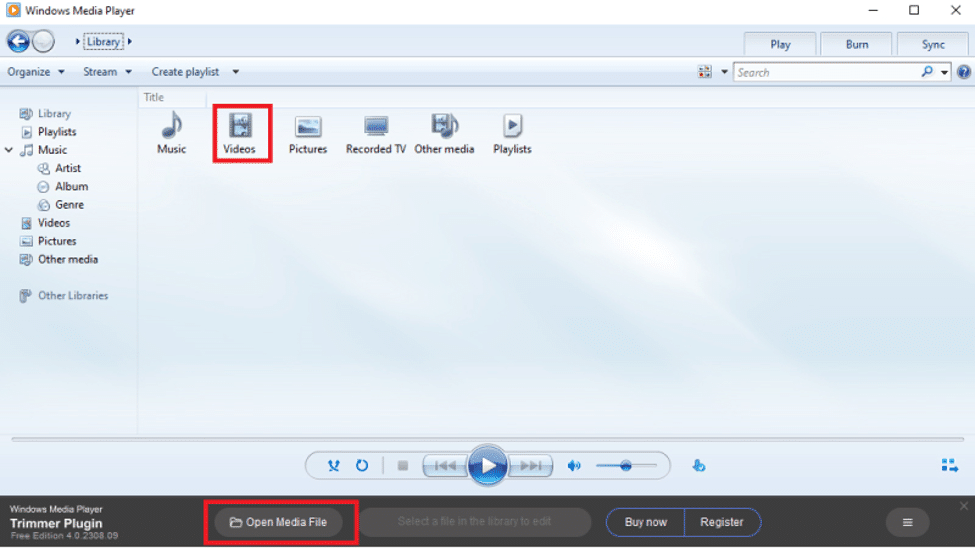
Step 1: Open Your Media Library
After installing the plug-in, you need to open the Media library in it. You can find this option in the lower menu in your plugin.
Step 2: Open Your Video
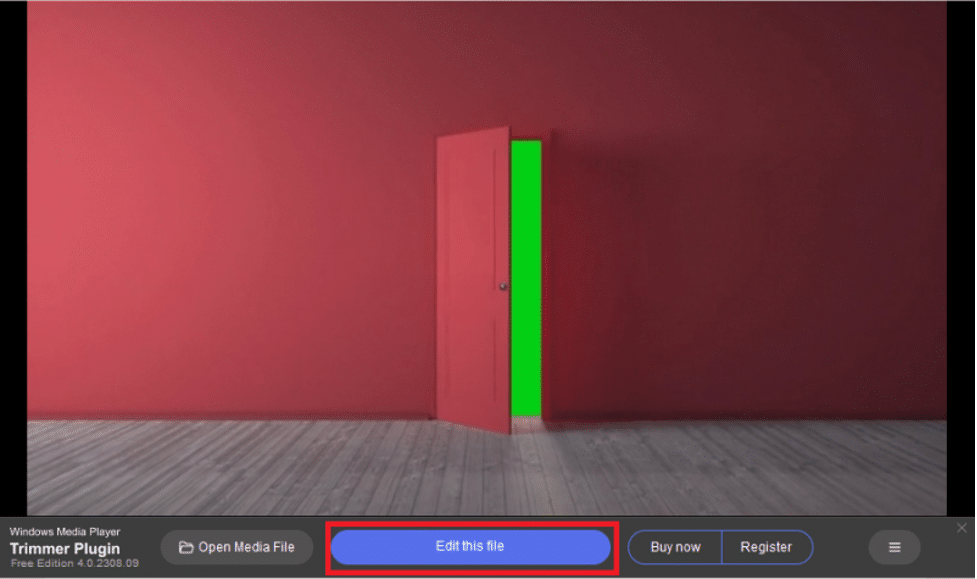
Now, you need to play the video from the library. When you play it, you can see “Edit this file” on the screen.
Step 3: Trimming Video
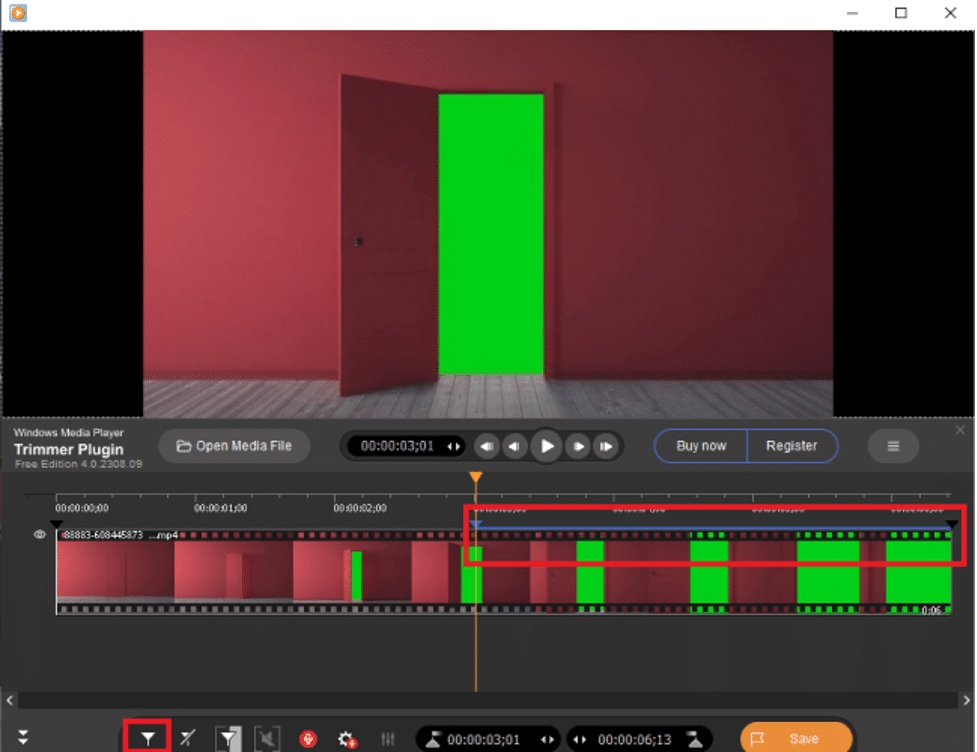
In this plugin, the main editing you can do is to trim videos. For this, you can click on “Add Marker” and select the area you want to trim. After selecting the area, click on “scissors”. It will cut your selected area. Now, it is your choice either to keep it or delete that part.
Step 4: Export the Video.
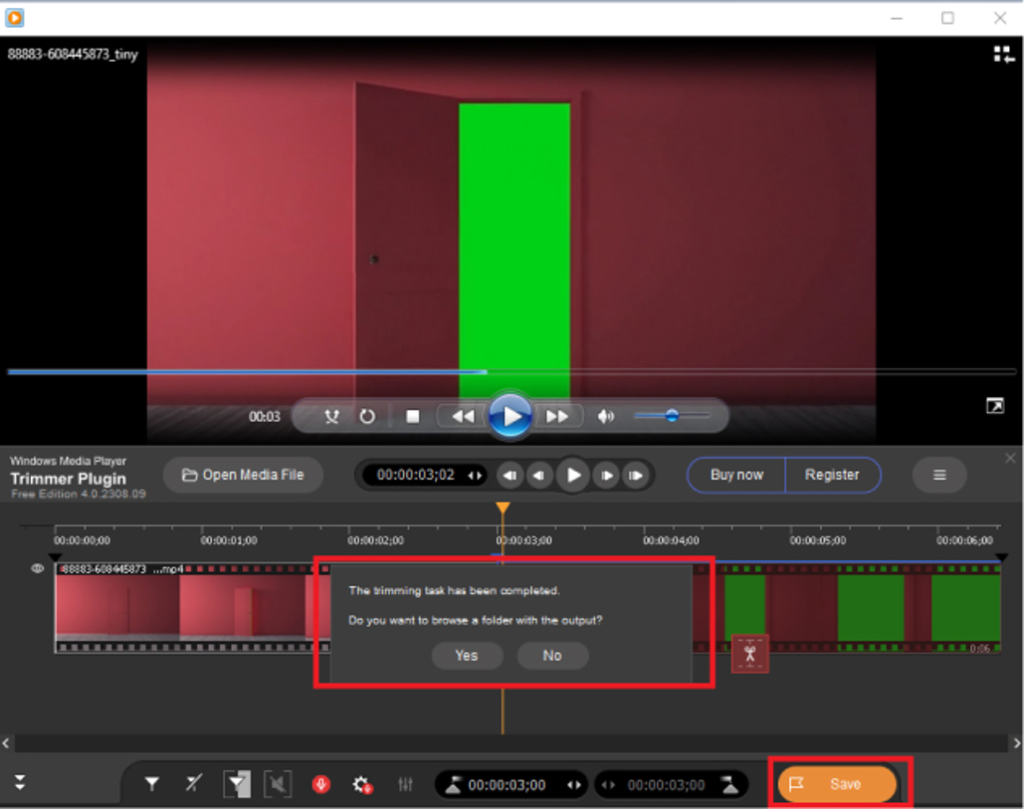
When you are done, click on the “Save” button. It is in the lower menu of your interface. When you click on it, the video will be saved in your library.
Best Alternative to Windows Media Player
As I have already told you Windows Media Player doesn’t have advanced editing features, you must want an alternative to it. Well, Hitpaw Edimakor is a great option for you.
Features:
This AI tool offers various video editing features. Some of them are:
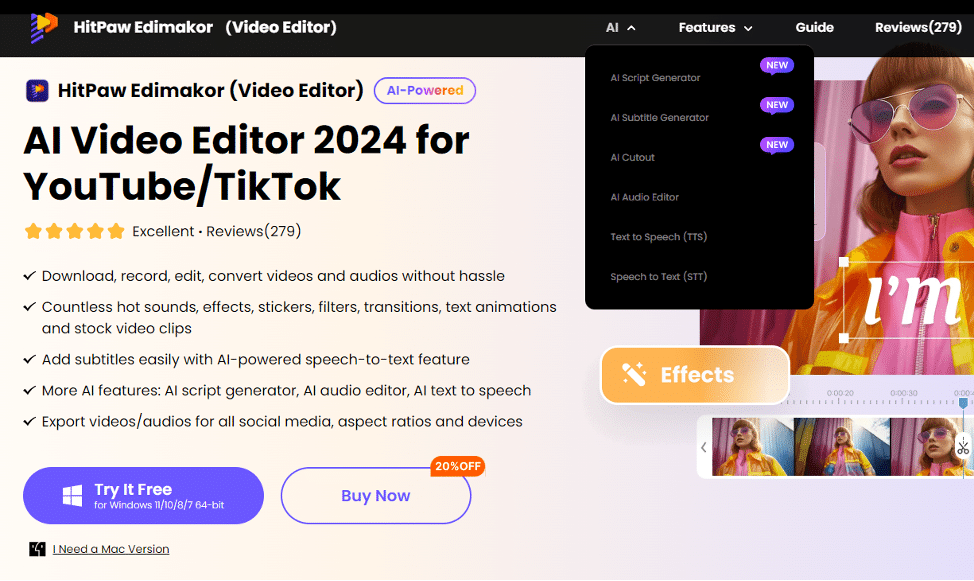
- Add subtitles to videos with files in SRT, LRC, ASS, and VTT formats.
- Create AI Storyboard Scripts In 20+ Languages With Ease.
- Enhancing the video, audio and photo quality.
- Change or remove the background in pictures and videos.
- Adding subtitles through the speech-to-text option.
- Converting videos, audio and pictures in different formats. Some famous ones are PNG, JPJ, MP4, MOV, GIF, M4A, MP3, WAV, AVI and many more.
- Removing any noise from the audio.
Step by step guide:
These are a few AI features of this tool. Currently, it is expanding and adding more features. So, you can expect to find much more in it in the coming days. A small tutorial of it will tell you how to use it.
Step 1: Import & Download the Video Clips.
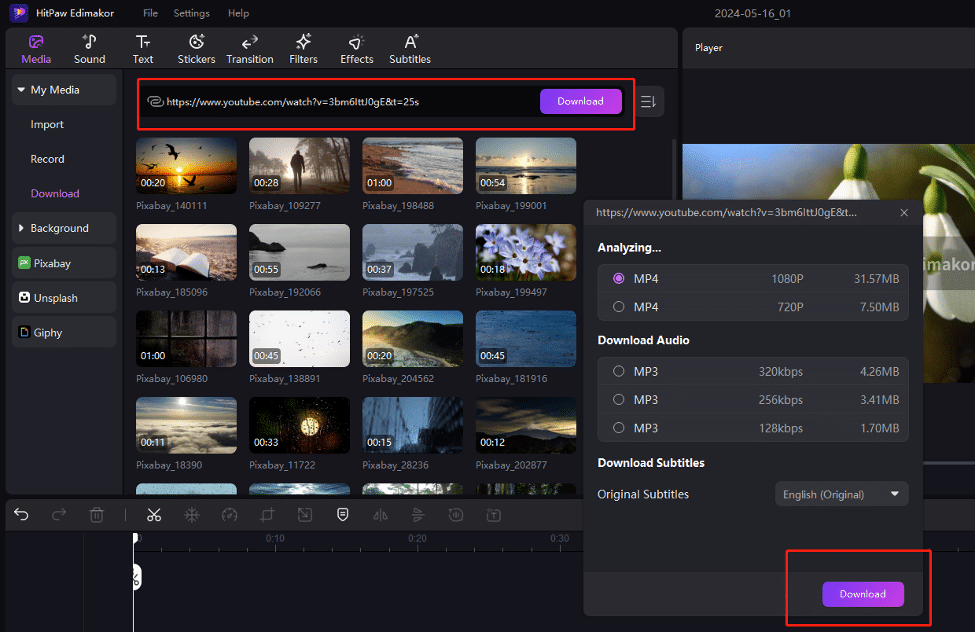
When you open the tool, you can see the Import option. So, use it to import your video from your computer and drag your video to the main track at the timeline.Or if you want to download a video, you can directly copy the video link and search in the download search box.You can also record your computer screen through Edimakor’s recording feature.
Step 2: Preview The Video.
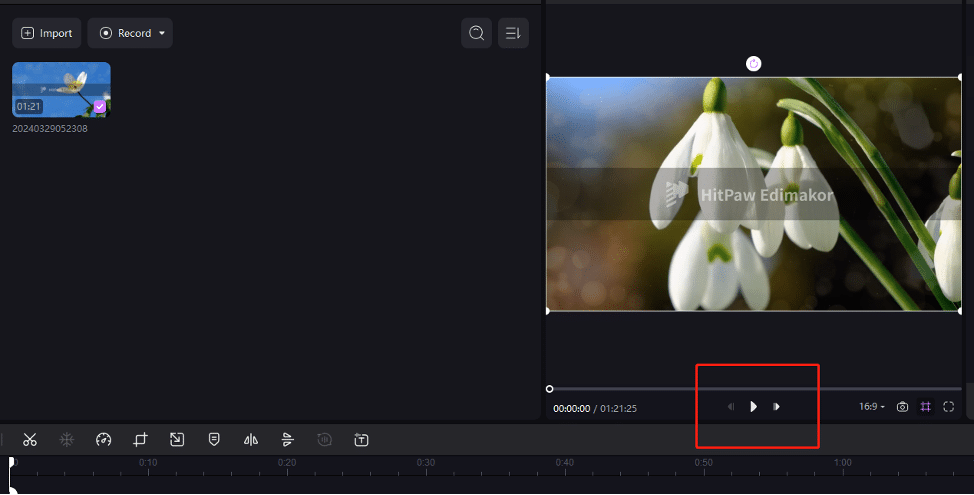
You can click on the “Play” button to preview your video.
Step 3: Edit the Video.
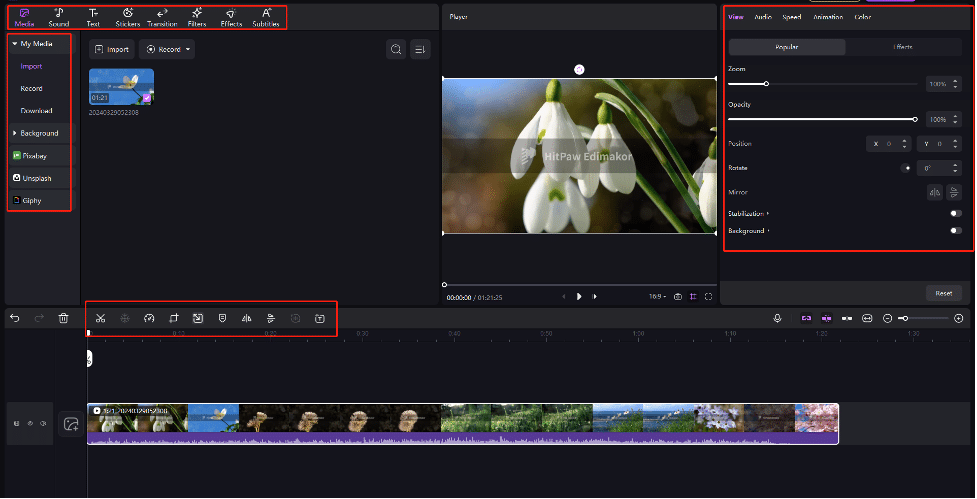
You can see various menus on the interface of this tool. One menu is in the headbar of the timeline. The other one is on the top of the screen. And, the third one is the side menu. You can explore different video editing features of this tool through these menus.
For example, for splitting videos, you can see them in the timeline of your video. You need to drag it to the part of the video you want to split. When you reach the start point, click on the “Scissors” icon in the toolbar.
Step 4: Export the Video
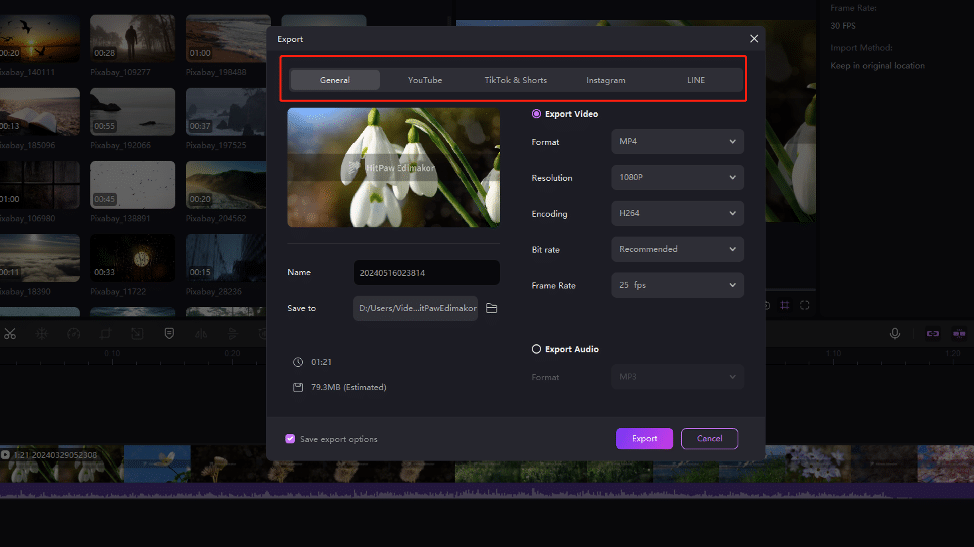
You can see the export option at the top of the screen. When you click on it, a pop-up window will come on the screen. You need to tell the tool in which format, resolution, and frame size you want to download the video. After making the whole setting, you can click on the export button. In this way, your video will be downloaded in the gallery.
Hot FAQs
Is HitPaw Edimaker safe and private?
Yes, you can use it without any worries.
Are there any limitations to editing videos in Windows Media Player?
Yes, you can’t have an advanced editing toolkit in this software.
Can I use Windows Media Player to edit Videos?
Yes, you can do basic video editing through it.
Conclusion
While Windows Media Player offers basic video editing features such as trimming and adding simple effects, it falls short for more advanced editing needs. For a more comprehensive and user-friendly experience, consider using HitPaw Edimaker. HitPaw Edimaker provides a wide range of powerful tools, including AI-driven enhancements, background changes, automatic watermark removal, subtitle addition, and noise reduction. It supports multiple formats and is continually updating with new features.