

Most PDF apps on Mac exist on a spectrum between “barely enough” and “more than you’ll ever need, but slow about it.” Adobe Acrobat sits at one end – it’s capable, yet expensive. Preview sits at the other end, fast and lightweight, useful right up until the moment you need to actually do something. For three years, I’ve been bouncing between the two depending on the task, occasionally dragging in a third-party app when neither covered what I needed. That patched-together workflow is exactly the kind of thing you stop noticing until something makes you notice it.
KDAN PDF, freshly rebuilt with what the company describes as a new performance-driven architecture, is making a case for the whole spectrum. I tested the beta over a work week, using documents I was on a deadline for, to see whether the rebuild changes anything that matters in daily use.
Five Seconds Sounds Small Until It Isn’t
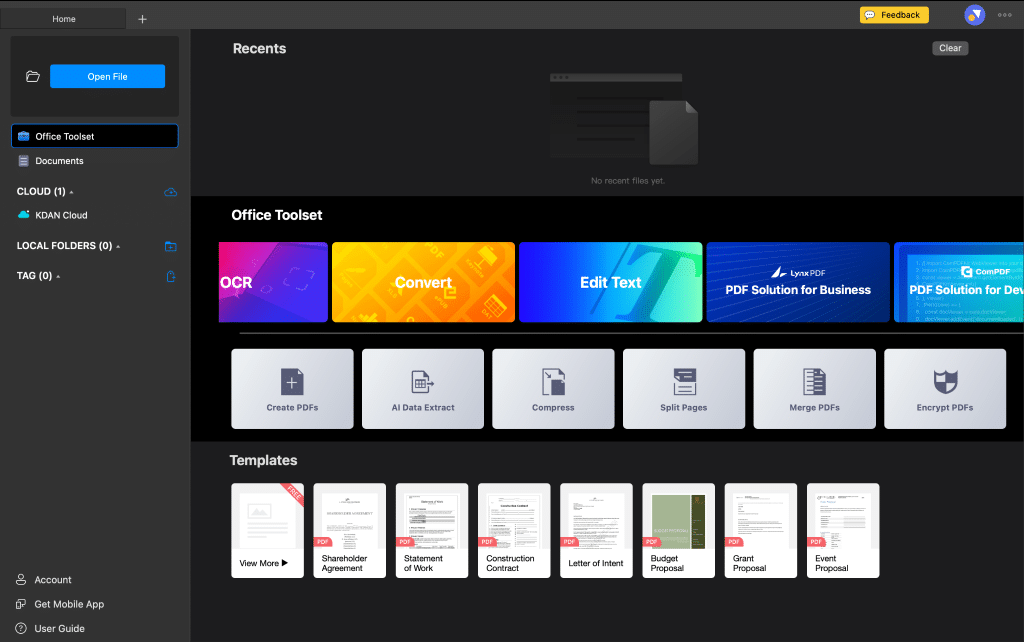
The first thing I noticed was the launch speed. Five seconds from clicking the dock icon to being ready to open a file, consistently, including after a full day of other apps running. That number sounds minor until you consider how PDF tools actually fit into a working day. You’re not opening one document and staying in it for hours. You’re opening, closing, switching, reopening, often mid-thought, and under time pressure. Every cold-start delay compounds in a way that’s easy to dismiss until it’s gone.
What the launch speed signals more than anything is that the underlying architecture has changed. The previous version of KDAN PDF, like most PDF tools in this category, carried the weight of its own complexity around at startup. The rebuilt app doesn’t. You click, it opens, and you’re already thinking about the document rather than waiting for the tool to catch up.
The Annotation-to-Edit Transition Is Where It Earns Its Keep
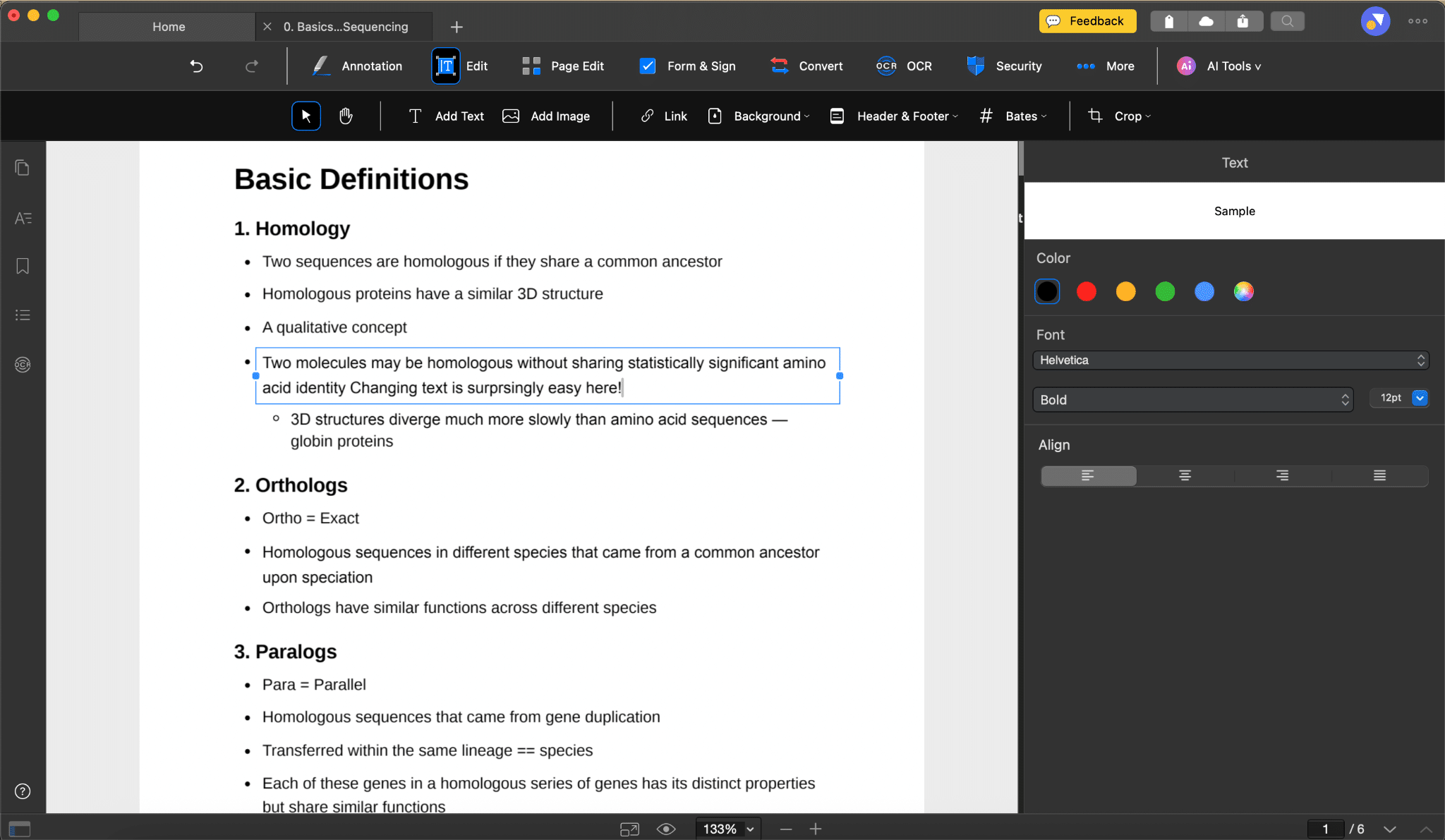
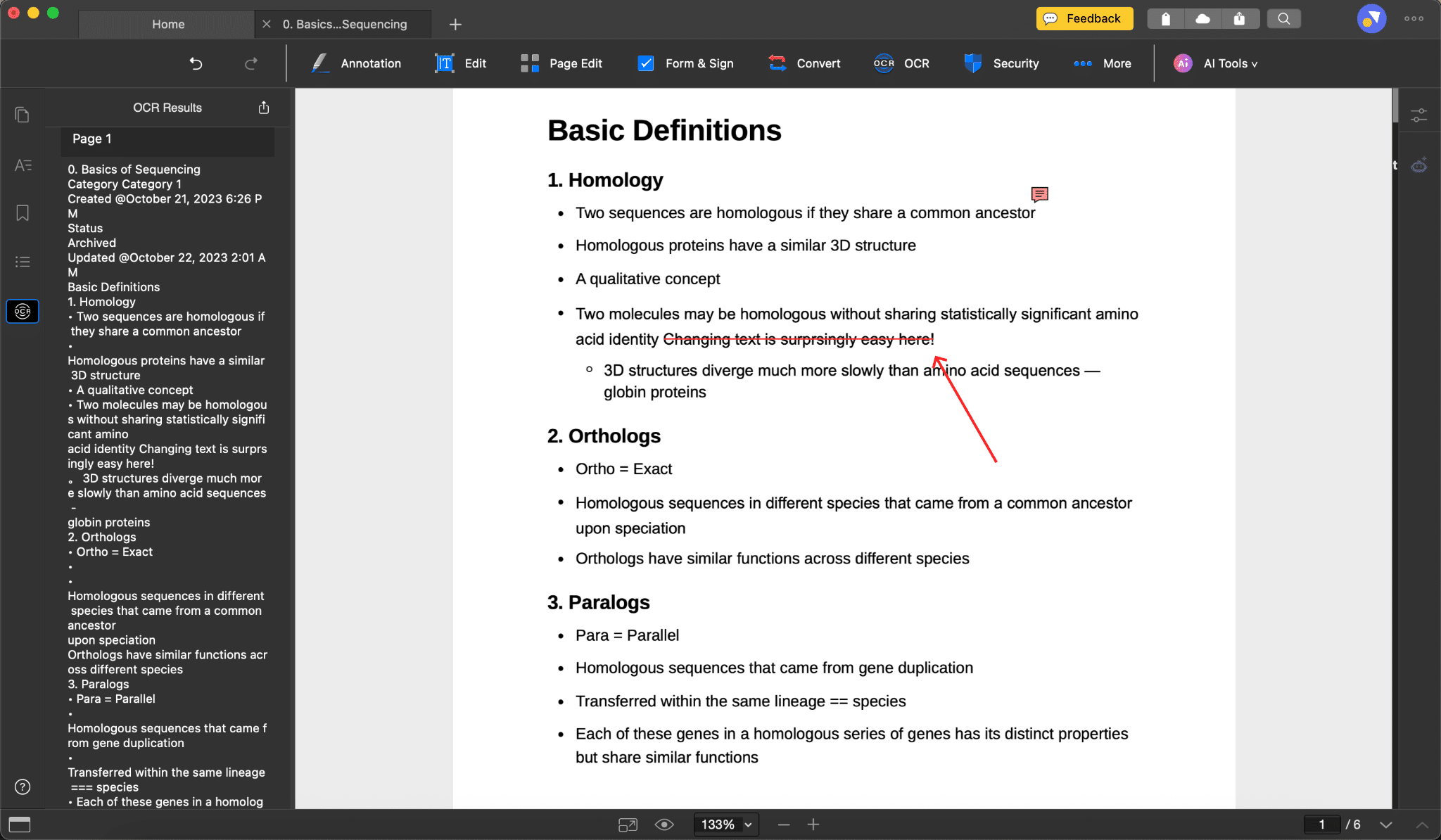
The productivity case for any PDF app hinges on one specific move, and that’s switching between annotation and text editing. It’s the transition that breaks most tools. You’re mid-flow, highlighting and commenting, and then you need to go back and fix a sentence directly in the body text.
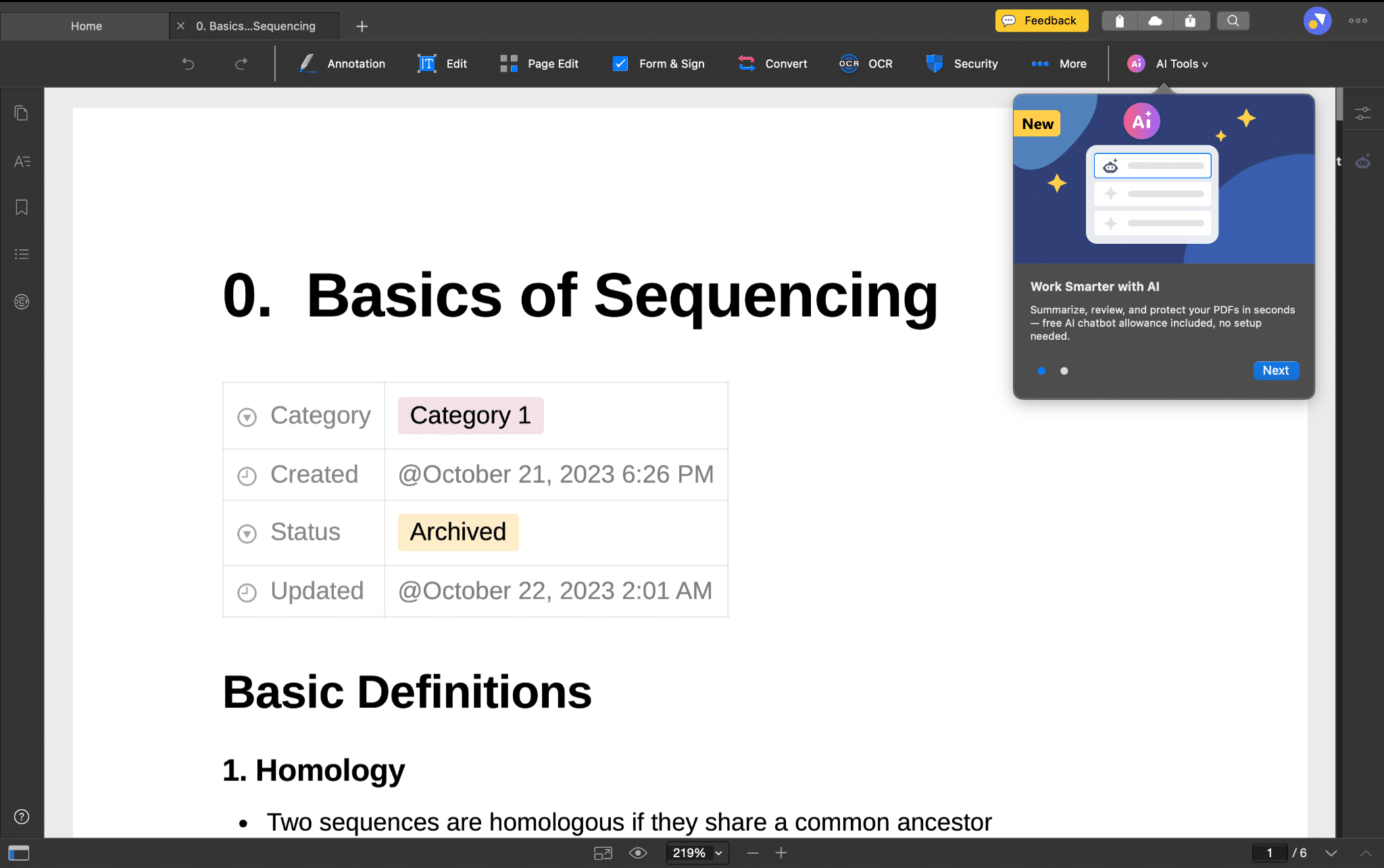
I was working through a 22-page document and needed to jump back and edit a paragraph. The text settled back into the surrounding layout cleanly, keeping the formatting intact, so I didn’t have to reformat anything afterwards. That seamlessness wasn’t something I expected, and it was the detail that most changed how I felt about the app by the end of the week.
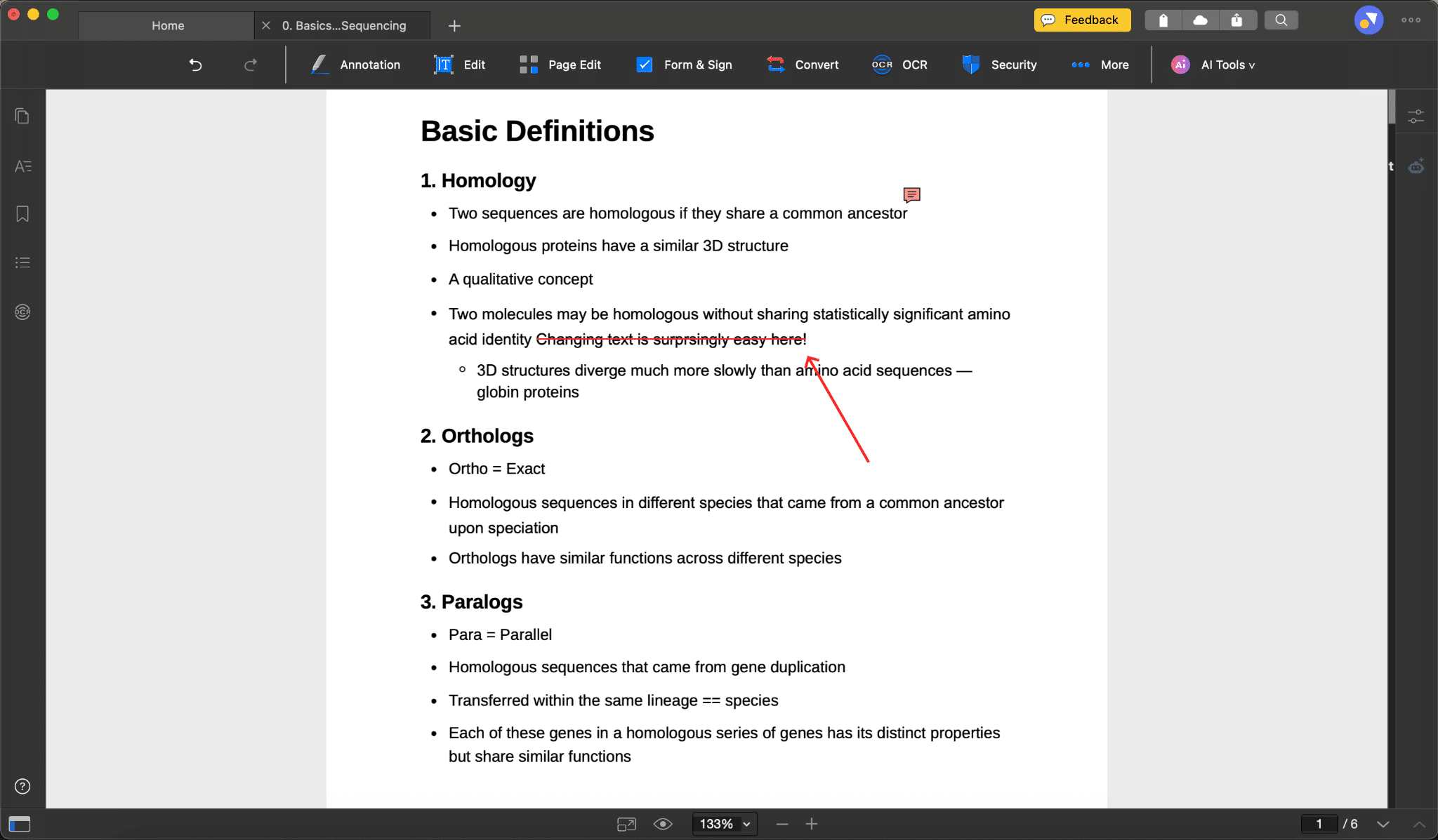
Highlighting and commenting are smooth throughout. Adding text boxes is fast. The place where the annotation experience stumbles is directional tools, arrows specifically. There’s a lag when placing them that isn’t present elsewhere in the annotation workflow, and adjusting the direction requires more patience than it should. It’s a noticeable inconsistency given how clean everything else feels, and it stood out precisely because the surrounding experience had set a higher bar.
OCR Is Not an Afterthought Here
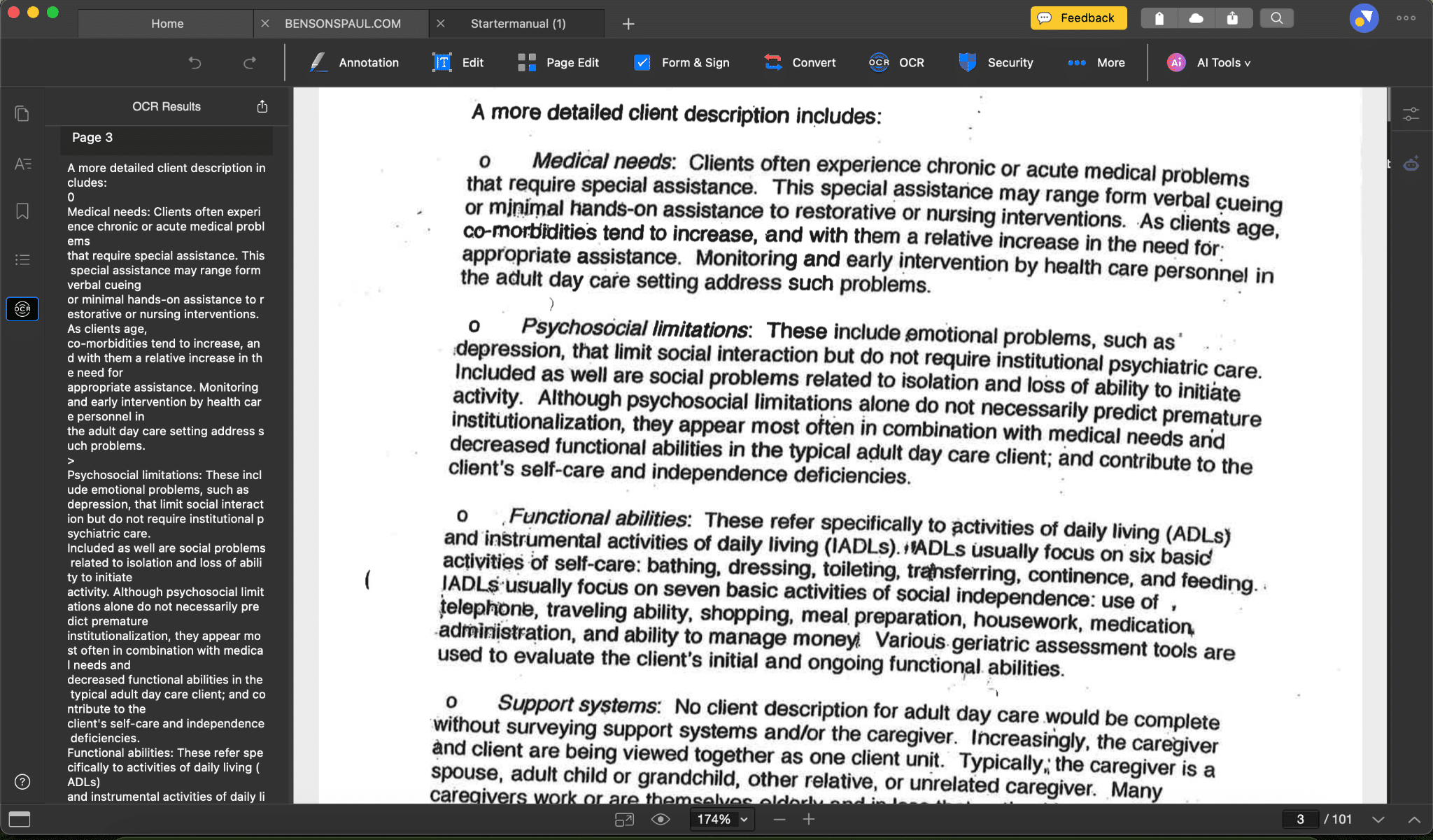
The OCR tool deserves a standing ovation. I ran it on a scanned textbook page that had been sitting in my downloads as an unsearchable file. It was the kind of file you keep meaning to do something with and never do because the friction is too high. Within two to three minutes, it was fully searchable. For anyone regularly working with scanned contracts, reference materials, or legal documents, that’s an incredible feature to have in your corner.
What I also didn’t expect was the OCR Result panel. Once the scan processes, the extracted text appears on the left side, where you can edit it directly, then save the whole thing as a new PDF. A document that came in as a static image leaves as something fully searchable and editable. That’s a meaningfully different outcome than most OCR tools deliver.
The Interface Asks Something of You
KDAN PDF is more capable than it is immediately intuitive, and the gap between those two things is real. I found myself hunting for functions I expected to find more quickly. The app rewards deliberate exploration, but it doesn’t hand itself over to you on first use. If you’re coming from Preview, expect a couple of sessions before the layout clicks. If you’re coming from Acrobat, the logic is different enough that muscle memory won’t carry you far.
This isn’t a dealbreaker. The learning curve is proportionate to what the app can do. But it’s worth going in knowing that the interface efficiency catches up over time rather than immediately.
Who This Is Actually For
KDAN PDF puts annotation, text editing, OCR, compression, and conversion into a single app that doesn’t make you wait to use any of them.
After three years of stitching together a PDF workflow across Acrobat, Preview, and whatever else the task required, having one app that actually keeps pace with how I work is not a small thing. If your document setup feels more fragmented than it should, test this with a file you’re actually working on.